

Keyboard Shortcuts in Knowledge of ICT: Windows, MS Office and Browser Commands with Worked Examples
Learn to decode keyboard shortcuts by application and focus. Compare Windows, browser and MS Office commands, then check each idea through exact text and Excel traces.
KnowledgeGate Team
Exam prep & CS education
Updated 14 Nov 20266 min read
You may remember Ctrl+C easily, then hesitate when Ctrl+R or F5 appears. The same key can produce a different result in Word, Excel, PowerPoint or a browser. A shortcut is not just a pair of keys. It is a command interpreted by the active application and current focus. For ICT questions, interpret each shortcut through the active application, current focus and selected object.
1. Keyboard shortcuts in ICT: notation, scope and focus
A keyboard shortcut invokes a command without a menu. Ctrl+C means hold Ctrl while pressing C. Alt+F4 combines a modifier and function key. For Win+Shift+S, hold both modifiers before S. Plus means together; a comma, as in Alt, H, O, R, means a sequence.
Scope | What decides the action | Examples | --- | --- | --- | Common editing | Focused text or object |
| Operating system | Windows shell or active window |
| Application | Program and document state | Word | Hardware or layout | Keyboard and function-key mode | A laptop may need |
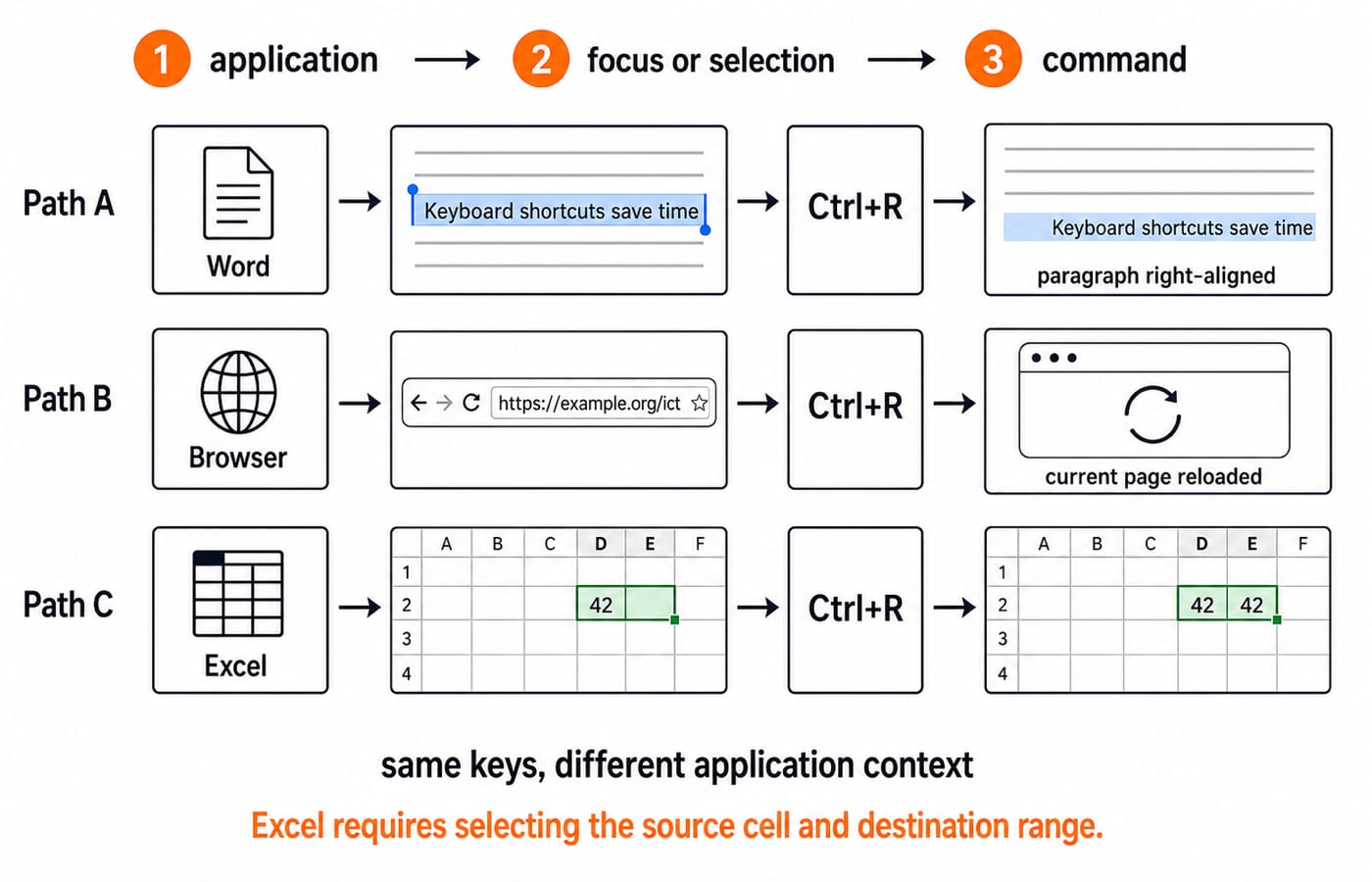
Check the application, focused object or selection, then the keys. Ctrl+R is incomplete; Ctrl+R in Word supplies the context.
2. Common Ctrl shortcuts: cut, paste, undo and redo
Family | Commands and actions | --- | --- | Clipboard |
| History |
| Scope and files |
|
Begin with Keyboard shortcuts save time, caret immediately after time.
Ctrl+Shift+Leftselects onlytime.Ctrl+XleavesKeyboard shortcuts save, including the trailing space, and putstimeon the clipboard.Ctrl+VrestoresKeyboard shortcuts save time.Ctrl+Zremoves the pastedtime.In an app where
Ctrl+Ymeans redo, it restores the paste andKeyboard shortcuts save time.
In Word, Ctrl+B, Ctrl+I and Ctrl+U toggle bold, italic and underline. Ctrl+L, Ctrl+E, Ctrl+R and Ctrl+J set paragraph alignment. Ctrl+= applies subscript; Ctrl+Shift+= applies superscript. Formatting uses a selection or insertion state, while cut and paste use the clipboard. Browsers and web apps can intercept keys.
3. Navigation and selection shortcuts by scope
Keys | Text or worksheet action | --- | --- |
| Start of the line / start of the document or Excel worksheet |
| Line end / document end, or Excel's lowest used row in the rightmost used column |
| Move by word in text | Add | Extend the selection while moving |
| Move by a screen or page, depending on the app |
Ctrl+A selects all in the current scope. Excel uses Ctrl+Space for the current column and Shift+Space for the current row. Ctrl+Page Up and Ctrl+Page Down move between Excel worksheets, but can move between browser tabs.
At a text caret, Backspace normally deletes left and Delete right. File Explorer's Delete normally moves a file to the Recycle Bin; Shift+Delete bypasses that path and can make recovery harder, so confirm the selected file before using it.
4. Windows, File Explorer and browser shortcuts
Documents\\ICT contains lesson-plan.docx, scores.xlsx and diagram.png. Press Win+E, open the folder, select diagram.png, press F2, type keyboard-layout.png, then press Enter. The result is lesson-plan.docx, scores.xlsx and keyboard-layout.png. F2 renames because File Explorer and the file have focus.
Alt+Tab moves among app windows; Alt+F4 closes the active window or app. Win+D shows or restores the desktop, Win+L locks, Win+Shift+S opens region capture, and Ctrl+Shift+Esc opens Task Manager. Ctrl+Tab commonly moves among tabs or panes within one app.
In tab 1 at https://example.org/ict, press Ctrl+T for tab 2, Ctrl+L, type https://example.org/shortcuts, then press Enter. Ctrl+Tab and Ctrl+Shift+Tab cycle forward and backward. Ctrl+W closes the current tab; Ctrl+Shift+T reopens it. Ctrl+F finds text on the page, not a web search in the address bar.
5. MS Office shortcuts and an exact Excel fill-down
Keep separate mini-maps. Word uses Ctrl+M to increase paragraph indent and Ctrl+Shift+M to reduce it. Excel uses F2 to edit a cell, Ctrl+Space for a column, Shift+Space for a row, Ctrl+D to fill down and Ctrl+R to fill right. PowerPoint uses Ctrl+M for a new slide, F5 from slide 1, Shift+F5 from the current slide, and Esc to end the show. Ctrl+M again proves that context matters.
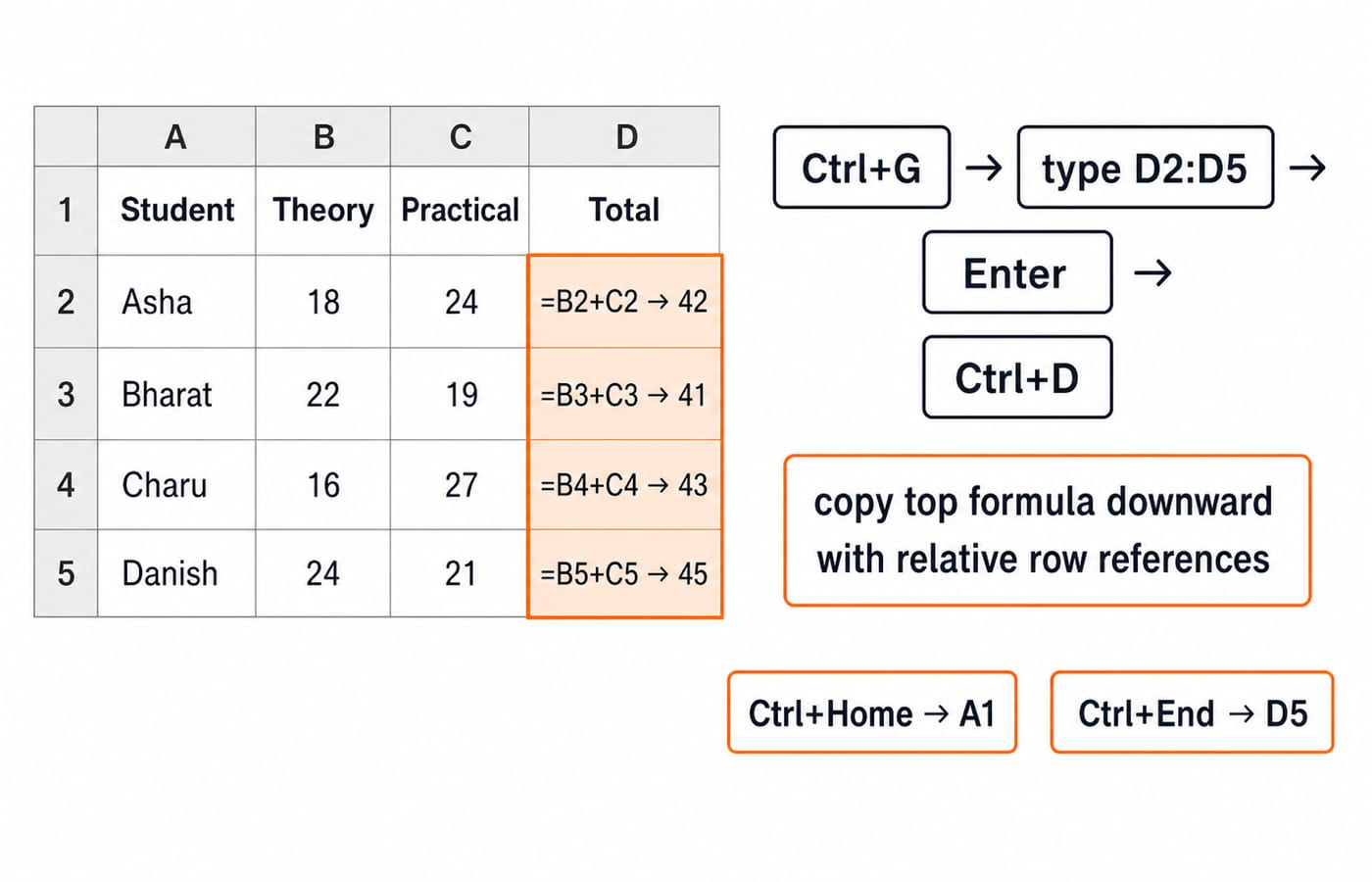
Set A1=Student, B1=Theory, C1=Practical, D1=Total. Enter Asha, 18, 24; Bharat, 22, 19; Charu, 16, 27; and Danish, 24, 21. In D2, =B2+C2 gives 42. With the used range ending at D5, Ctrl+Home goes to A1 and Ctrl+End to D5.
Press Ctrl+G, type D2:D5, press Enter, then Ctrl+D. Excel copies the top formula with relative row references:
D2=B2+C2=18+24=42D3=B3+C3=22+19=41D4=B4+C4=16+27=43D5=B5+C5=24+21=45
Press Ctrl+S to save; on a first save, it does not choose the file name.
6. Function keys F1 to F12 by application
Function keys are non-printable keys assigned by the operating system or active app. Compact keyboards may require the hardware-layer Fn key. The active application assigns the function-key action.
Key | Application-context examples | --- | --- |
| Help in many Windows apps |
| Rename in File Explorer; edit the active Excel cell |
| Search in File Explorer; Paste Name in Excel when the workbook has defined names |
| Cycle Excel references; |
| Refresh in a browser or File Explorer; Go To in Excel; start a PowerPoint show from slide 1 |
| Cycle focus among screen areas |
| Check spelling in Word or Excel |
| Extend selection in Excel |
| Recalculate in Excel; update selected fields in Word |
| Activate menu or KeyTip access in common desktop apps |
| Enter or leave browser full screen |
| Save As in Word; developer tools in common browsers |
Put 2 in Excel cell H1. In E2, edit =D2*H1 and select H1. Repeated F4 presses cycle H1 -> $H$1 -> H$1 -> $H1 -> H1. With D2=42, each form gives 42*2=84 before copying. Dollar signs control what changes when the formula moves; F4 changes anchoring, not multiplication.
7. Keyboard shortcut traps in teaching-exam questions
Trap | Why it fails | Correct check | --- | --- | --- |
| Word and Excel assign different commands | Read the application |
| Unmodified | Check for |
| It selects the current scope or all | Use |
| One normally crosses app windows; the other crosses tabs or panes | Identify the boundary |
| Caret direction or selected-object behaviour differs | Locate the caret and selection |
| PowerPoint and Excel assign different commands | Identify the focused app |
| One commonly closes a document or tab; the other closes the active window or app | State what is active |
Questions may match commands and keys, compare applications, test key categories, follow file operations, or ask for cursor, selection and multi-step outcomes. Practise across Common Editing, Function Keys and Windows & System Keys, and identify the active application before choosing an answer.
Connect digital-tool fluency to classroom practice through Computer Science Pedagogy for Teacher Exams. Use Teaching Exam Mock Strategy for CS Papers for mixed-context practice and Govt Teaching Job Exam Preparation as the broader resource hub. Use the recruiting body’s current notification for the official syllabus and exam pattern.
8. Keyboard shortcuts in ICT: the short version and next step
Recall application -> focus -> modifier -> key -> action. The traces restore Keyboard shortcuts save time, rename diagram.png to keyboard-layout.png, and fill Excel totals 42, 41, 43, 45. PowerPoint F5 starts from slide 1; Shift+F5 starts from the current slide.
For a five-minute drill, reproduce the four families and seven traps, redraw A1:D5, then recompute 18+24, 22+19, 16+27 and 24+21. Add the application before checking any key.
For broader preparation, use the DSSSB Section A 2026 Complete Course. The DSSSB TGT CS 2026 Section B Course is the separate Computer Science route. For this topic alone, start with the traces and mixed-context drill.
Go deeper with the full courseGATE Guidance by Sanchit Sir
Keep learning
UP Police Computer Operator MS Office: File Types and Keyboard Shortcuts
Build four files in one folder, practise the shortcuts in context, calculate an Excel result and check yourself with four answered objective questions.
Updated 28 Jul 20266 min read51 viewsUP Police Computer Operator
MS Office Applications for Knowledge of ICT: Worked Word, Excel and PowerPoint Tasks
Choose the right MS Office application, then build a connected Week 3 workbook, report and slide deck with verified calculations and clear task distinctions.
Updated 22 Sep 20266 min readTeaching Recruitment (Computer Science)
Knowledge of ICT Explained: Digital Divide, Email Fields and MS Word Macros
Connect access, communication and automation through three worked ICT concepts. Practise denominator choice, Bcc visibility and a beginner Word macro trace.
Updated 16 Aug 20266 min readMP Cooperative Bank

Banking Exams Computer Awareness: OS, MS Office, Networks and Security Made Clear
Build a connected revision map for operating systems, MS Office, networks and security. Then practise the ideas through worked Excel, IPv4 and phishing examples.
Updated 21 Aug 20267 min readBanking Exams