MS Office Applications for Knowledge of ICT: Worked Word, Excel and PowerPoint Tasks
Choose the right MS Office application, then build a connected Week 3 workbook, report and slide deck with verified calculations and clear task distinctions.
KnowledgeGate Team
Exam prep & CS education
Updated 22 Sep 20266 min read
Learners often memorise icons without knowing which application owns a task or what a command changes. Word organises documents, Excel calculates tabular data, and PowerPoint presents slide-based communication; Knowledge of ICT questions differ from hands-on interview tasks.
MS Office applications: choose the right tool before the command
MS Office applications are task-specific, not interchangeable.
Application | Best fit | Typical file |
|---|---|---|
Word | Document structure and page layout |
|
Excel | Tabular data and calculation |
|
PowerPoint | Slide-based communication |
|
Access | Relational desktop data |
|
Outlook | Email and calendar | Application data |
OneNote | Notebook-style notes | Notebook data |
Ribbon positions vary by version, but these terms stay useful: title bar, Ribbon tabs and groups, Quick Access Toolbar, File or Backstage view, status bar, clipboard, Undo and Redo, Save, Save As, Print and Export. Save updates; Save As creates a separate name or format; Export to PDF makes a fixed-layout copy.
Three students' Week 3 scores produce a workbook, one-page report and four-slide deck. Govt Teaching Job Exam Preparation is the wider category if you are targeting teaching or computer-instructor recruitment.
Microsoft Word: build document structure instead of painting text
Character formatting affects selected text; paragraph formatting controls alignment, spacing, lists and tabs. Styles create structure, unlike manual bold and size changes. Tables organise content, margins control page space, and page breaks start pages. Section breaks can also change margins, columns, headers or orientation.
Create ict-practice-review-v1.docx. Apply the Title style to ICT Practice Review: Week 3, add Heading 1 Results, then insert this 4-row by 3-column table:
Student | Average | Action |
|---|---|---|
Asha | 71.0 | Ready |
Ravi | 58.0 | Revise |
Noor | 87.3 | Ready |
Add caption Table 1: Week 3 status and footer ICT Lab | Page 1, then export ict-practice-review-v1.pdf. Find and Replace, spelling tools, comments and Track Changes aid review. Styles, captions and page breaks survive editing better than manual spacing. Mail merge combines one template with Student and Action fields to make three personalised notices.
Microsoft Excel: calculate the Week 3 result step by step
A workbook contains worksheets of rows and columns. Their intersection is a cell; B2:D2 is a range. Labels describe numeric values, while formulas begin with = and follow operator precedence.
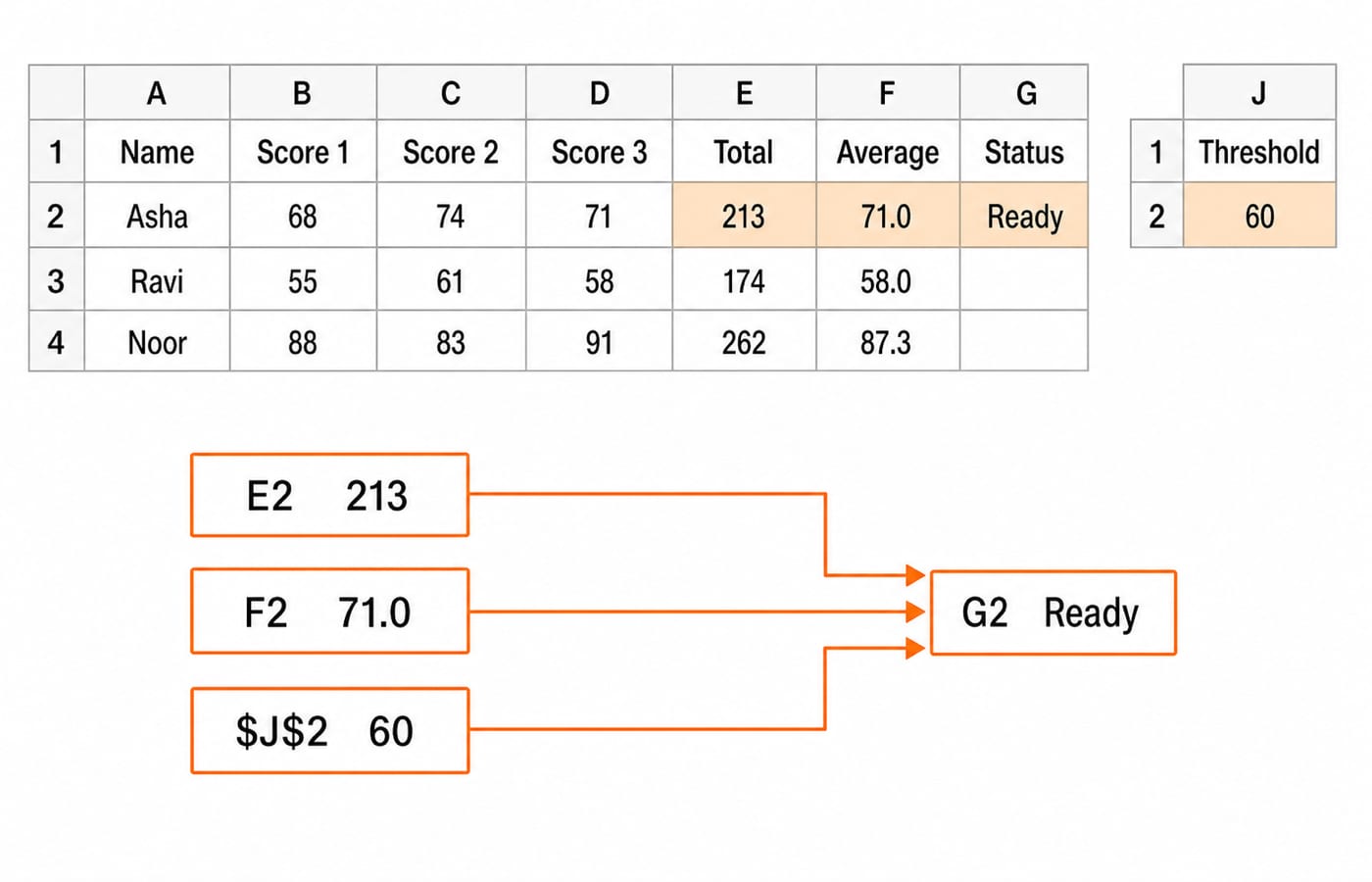
In week3-scores.xlsx, put Student, Test 1, Test 2, Test 3, Total, Average, Action in A1:G1. Rows 2 to 4 hold Asha 68, 74, 71, Ravi 55, 61, 58, and Noor 88, 83, 91. J1 is Ready threshold; J2 is 60.
Now calculate visibly:
In E2,
=SUM(B2:D2)gives68 + 74 + 71 = 213.In F2,
=ROUND(AVERAGE(B2:D2),1)gives213 / 3 = 71.0.In G2,
=IF(F2>=$J$2,"Ready","Revise")compares71.0with60, so the result isReady.Fill E2:G2 down. Ravi gives
55 + 61 + 58 = 174, then174 / 3 = 58.0, so his action isRevise.Noor gives
88 + 83 + 91 = 262, then262 / 3 = 87.333..., rounded to87.3, so her action isReady.
Relative B2:D2 and F2 shift when copied; $J$2 stays fixed. Conditional formatting below 60 highlights only Ravi's 58.0. Sorting Average descending gives Noor 87.3, Asha 71.0, Ravi 58.0; filtering merely hides non-matches. Chart A2:A4 and F2:F4 as clustered columns titled Week 3 Average.
Microsoft PowerPoint: turn the same numbers into a clear explanation
A theme coordinates design; Slide Master controls repeated deck-wide elements. A layout arranges placeholders, while a text box is separate. A transition changes between slides; an animation affects an object on a slide. Neither should distract.
Create ict-practice-review-v1.pptx with four slides:
ICT Practice Review: Week 3.Average by Student, containing the Excel chart with Asha71.0, Ravi58.0and Noor87.3.What the Results Show, withNoor leads at 87.3,Asha is ready at 71.0, andRavi is 2.0 points below the 60 threshold.Next Actions, withRavi: revise formulas twice this weekandAsha and Noor: attempt the next practice set.
Use readable labels, a consistent layout and meaningful chart alt text. Speaker notes should supplement, not duplicate, slide text.
MS Office integration, Access and Outlook: know what moves and what stays linked
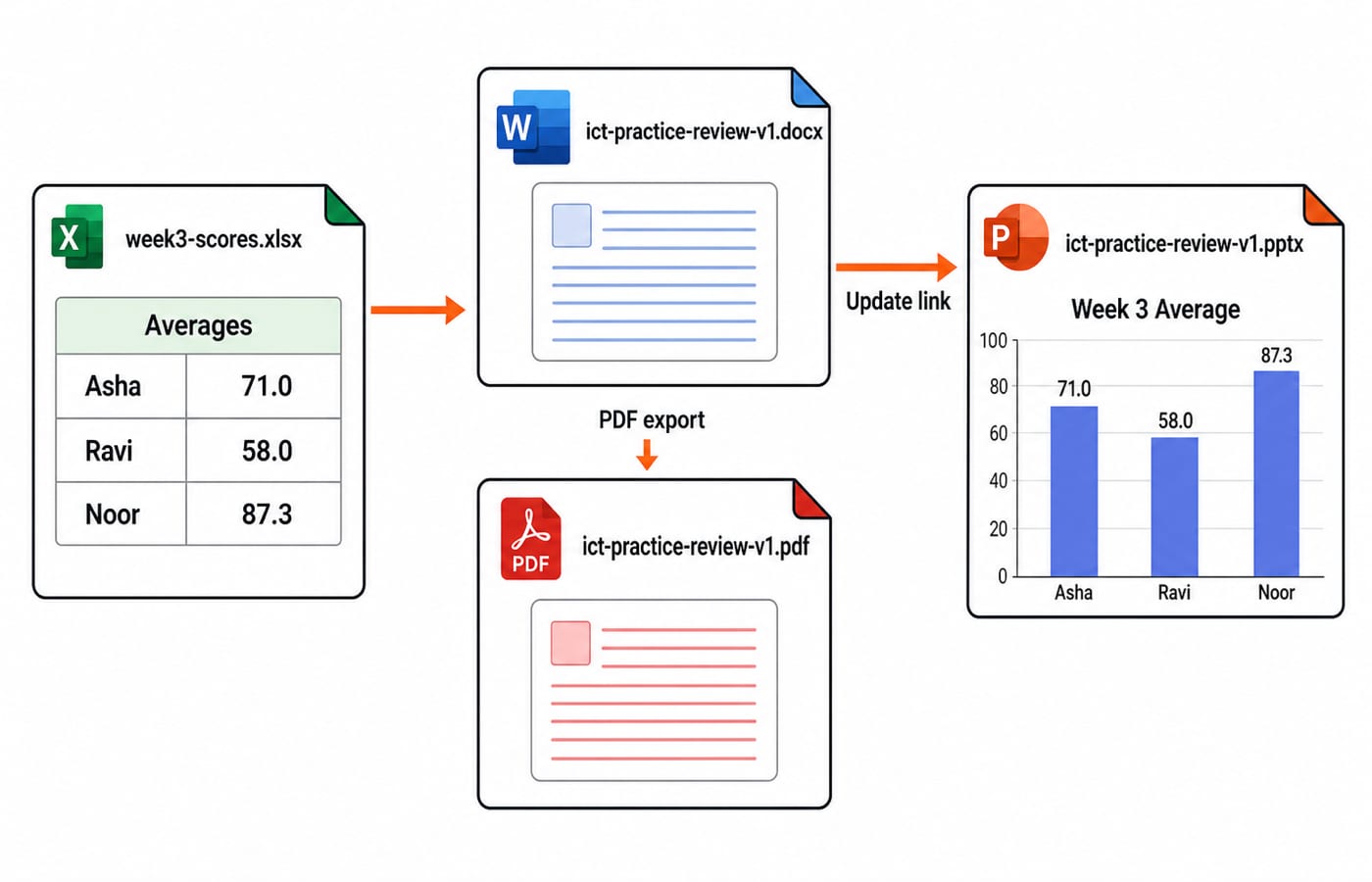
Paste copies normally; Paste Special chooses the form. An embedded object travels inside its destination. A linked object can update, but a moved source breaks the path. Paste the chart into Word as a static picture. Link it into PowerPoint only if the workbook has a dependable shared location.
Access stores related tables as records and fields. Primary keys identify records; queries retrieve data, forms enter it, and reports present it. Outlook separates To, Cc and Bcc, with Bcc hiding recipients from one another. OneNote uses notebooks, sections and pages.
The chain is week3-scores.xlsx, ict-practice-review-v1.docx with its ict-practice-review-v1.pdf export, and ict-practice-review-v1.pptx presenting 71.0, 58.0 and 87.3. Save the next revision as v2 rather than overwrite v1.
MS Office traps: similar-looking commands with different outcomes
Trap | Correct distinction |
|---|---|
Word table versus Excel | Word lays out; Excel calculates. |
Save, Save As, Export | Update; create a separate file; make a delivery format. |
Blank lines, page break, section break | Lines drift; page breaks start pages; section breaks can change layout. |
Relative |
|
|
|
Sort versus filter | Reorder rows; hide non-matches. |
Transition versus animation | Affect slides; affect objects. |
Cc versus Bcc | Visible recipients; hidden recipients. |
Embedded versus linked | Travel with the file; depend on the source path. |
Office file versus PDF | Editable source; fixed-layout output. |
Checking one fill-down, =AVERAGE(B3:D3) correctly returns Ravi's 58.0. Typing 60 into G3 would be wrong because Action must contain Ready or Revise. #DIV/0! means a formula tried to divide by zero; correct the input or guard the calculation. Never enable macros or active content from an untrusted file merely to make it work.
MS Office exam questions and interview tasks: identify, predict and perform
Questions may ask you to identify an application or extension, match command and result, predict a formula, distinguish interface terms, choose a tool, or perform a task. Check that $J$2 still points to 60 after filling down, Ravi's action is Revise, and relational data needing keys and queries belongs in Access, not Word.
MS Office is not part of the core GATE CSE syllabus. It fits Knowledge of ICT, UGC NET Paper 1, teaching or computer-instructor recruitment, and practical computer-awareness interviews. The recruiting body's current notification controls the syllabus. NET readers can compare UGC NET Paper 1 vs Paper 2: what each tests. Teaching CS Exams Compared: DSSSB, KVS, RSSB shows why scope varies. The NTA UGC NET Paper 1 Course is a structured next route.
MS Office applications: the short version and next practice step
Write and format in Word. Calculate, filter and chart in Excel. Present in PowerPoint. Store and query related desktop data in Access. Manage mail and calendars in Outlook. Preserve document structure with styles, preserve calculations with formulas and references, and export a PDF when sharing needs a fixed layout.
For one repeatable check, change J2 from 60 to 72 and predict before recalculating. Asha's 71.0 becomes Revise, Ravi's 58.0 stays Revise, and Noor's 87.3 stays Ready because every IF formula uses $J$2. If you are preparing for computer-instructor recruitment, continue with the RSSB Basic Computer Instructor Course.
Keep learning
Browsers and Search Engines MCQs: 9 Solved Questions with Explanations
Solve nine published browser and search engine questions, check each answer, and rebuild the browser, cache, crawler and indexing distinctions that exam distractors blur.
Updated 6 Oct 20267 min readTeaching Recruitment (Computer Science)
IT Act, 2000 Explained: Key Sections, Digital Signatures and Worked Exam Examples
Build an exam-ready map of the IT Act, then apply it to an exact digital-signature walkthrough and a section 43, 66, 66C and 66D caselet.
Updated 2 Oct 20266 min readTeaching Recruitment (Computer Science)
Emerging Trends Introduction MCQs: 12 Solved Questions with Explanations
Solve 12 Emerging Trends Introduction questions with clear answer logic, exam-year labels and a compact trap check for focused revision.
Updated 27 Sep 20268 min readTeaching Recruitment (Computer Science)
MS Word Basics MCQs with Answers: 12 Solved Questions Explained
Work through 12 MS Word questions covering everyday commands, page layout, formatting, links, file features and mail merge. Each answer explains the decisive clue and the closest distractor.
Updated 25 Sep 20267 min readTeaching Recruitment (Computer Science)