Windows System Keys Explained: Shortcut Meanings, a Worked Workflow and Exam Traps
Learn what Windows system keys do, how neighbouring shortcuts differ, and how to trace a two-desktop workflow without losing track of the final state.
KnowledgeGate Team
Exam prep & CS education
Updated 25 Oct 20265 min read
Shortcut questions look like memory work, but marks are lost by confusing neighbouring actions. Alt + Tab switches apps, Windows key + Tab opens Task view, Windows key + D reveals the desktop, and Windows key + L locks the session. For the wider hardware, software and internet foundation, revise ICT for Teaching Exams: Fundamentals Explained. Default Windows behaviour can change with the active application, Windows version or keyboard hardware, so every mapping needs its stated context.
What Windows and system keys actually mean
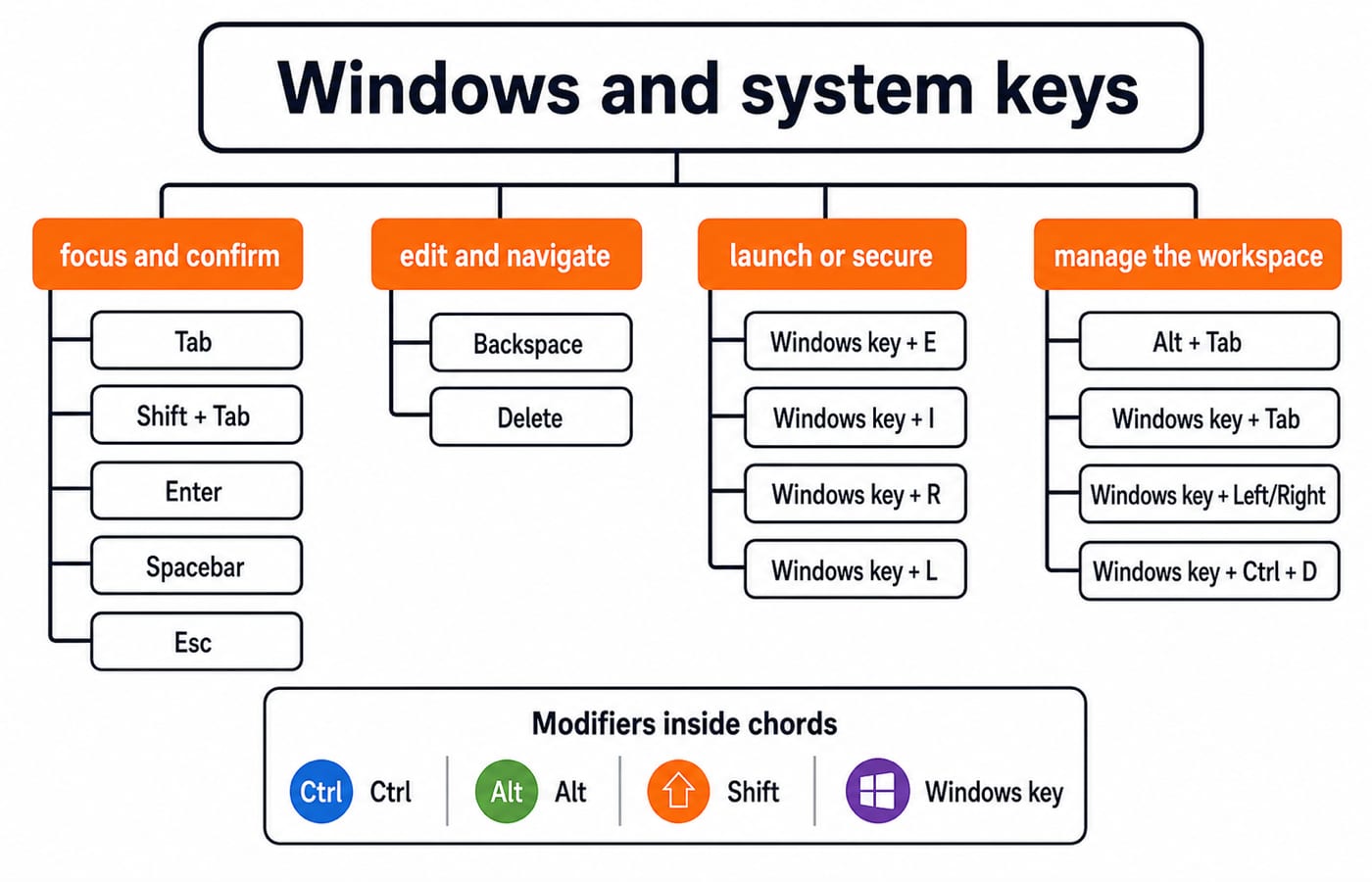
A key is one input. A shortcut maps a key or chord to an action. A modifier, such as Ctrl, Alt, Shift or the Windows key, changes another key's meaning. "System keys" is a loose preparation label, not a formal Microsoft category, so classify by function:
Functional group | Typical keys or shortcuts | Main purpose |
|---|---|---|
Focus and confirm | Tab, Shift + Tab, Enter, Spacebar, Esc | Focus, activate, toggle or dismiss |
Edit and navigate | Backspace, Delete | Remove or navigate in context |
Launch or secure | Windows key + E, I, R, L | Open a destination or lock the session |
Manage the workspace | Alt + Tab, Windows key + Tab, arrows, Windows key + Ctrl + D | Switch, view, snap or create |
Use Function Keys F1-F12 Explained: Uses, Worked Shortcut Map and Exam Traps for application-specific F-key mappings. Windows-logo chords instead govern workspace state, screenshots and security actions. A plus sign means press keys together; one chord is one event. The Windows key is also called "Win" or the "Windows logo key".
Focus, confirmation and cancellation keys in context
Focus identifies the control receiving input. Tab moves forward and Shift + Tab backward. Enter activates a selected or default command, Spacebar toggles the focused control, and Esc cancels or dismisses a menu, box or mode.
Consider a form ordered as Name field, Email field, Consent checkbox, Submit button. Start in Name and perform:
Tab moves focus to Email.
Tab moves it to Consent.
Spacebar selects Consent.
Tab moves focus to Submit.
Enter activates Submit.
That is five events. One Shift + Tab from Submit returns focus to Consent without clearing the checkbox.
In KEYS|2026, where | is the caret, Backspace removes the character before it, giving KEY|2026. Delete removes the next character, giving KEYS|026. Backspace can mean navigation in some shells or browsers, and applications such as MS Office can define shortcuts, so read the context.
Windows-key launchers: map the letter to the destination
Learn action pairs: the Windows key opens or closes Start; Windows key + E opens File Explorer; I opens Settings; R opens Run; L locks the computer; and S opens Search. These defaults come from Microsoft Support's Windows keyboard shortcut table.
Translate the prompt into a destination: inspect a folder, E; change a system setting, I; run notepad by command, R then type notepad; leave the desk without closing work, L. Locking is not signing out and does not close apps.
Version matters for volatile mappings. Interpret Windows key + A with the stated Windows version. Windows key + C can depend on Copilot availability or customisation. A current mapping need not fit every historical version.
Switching, viewing, snapping and revealing are different operations
Alt + Tab switches open apps or windows. Windows key + Tab opens Task view and exposes desktops. Windows key + D displays or hides the desktop and can restore the prior view. Windows key + M minimises all windows, but is not that toggle.
Windows key + Left or Right snaps the active window, Up maximises it, and Down moves it through states. Windows key + Home minimises or restores every window except the active one.
For desktops, Windows key + Ctrl + D creates one, Left or Right moves between them, and Windows key + Ctrl + F4 closes the current one. Moving desktops is not cycling through apps.
Worked example: organise two desktops in 10 shortcut events
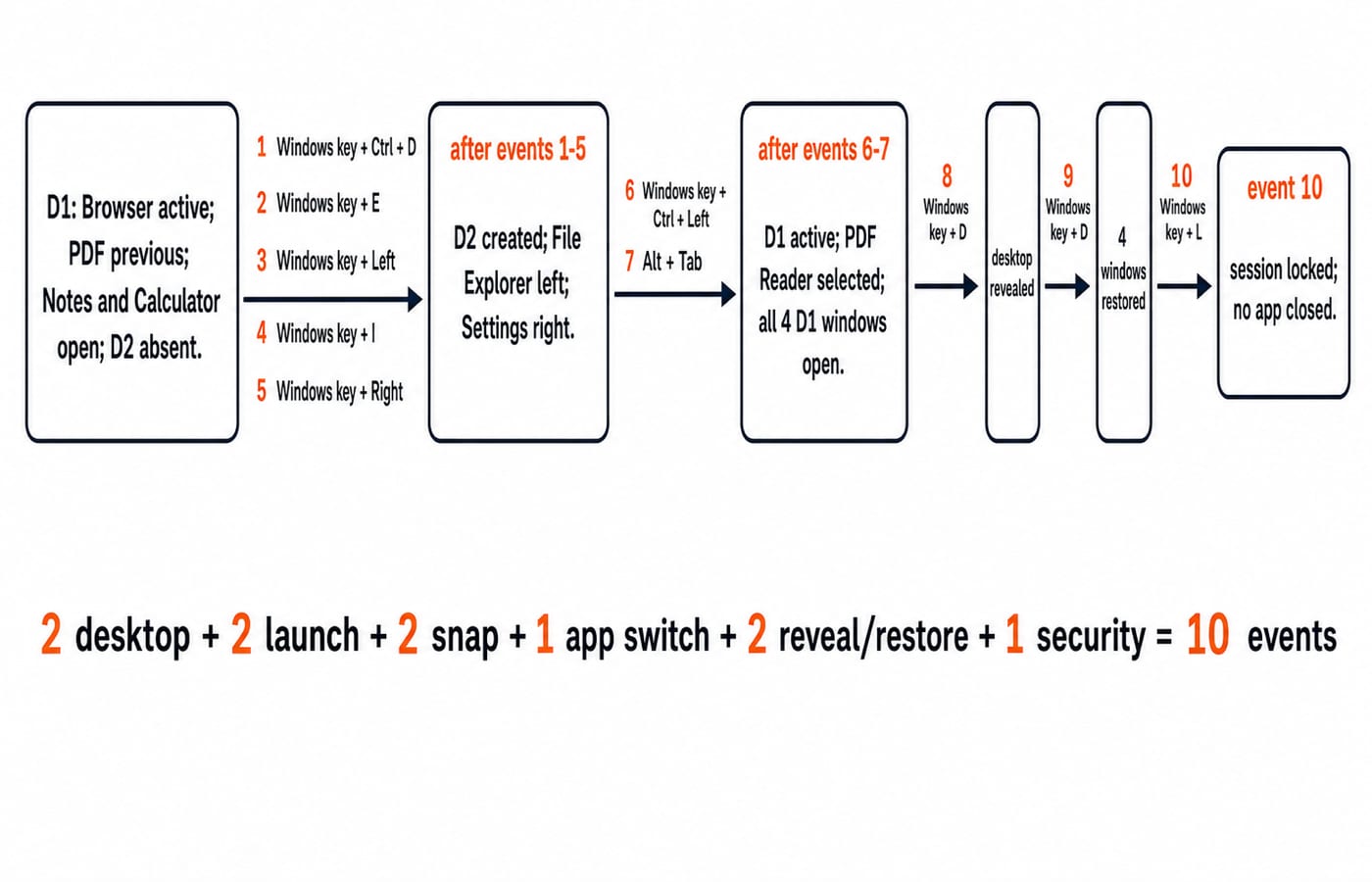
Desktop 1 starts with Browser active, PDF Reader immediately previous, and Notes and Calculator open. Desktop 2 is absent. Build a reference workspace there, return to the PDF, reveal and restore Desktop 1, then lock without closing anything.
Windows key + Ctrl + D creates Desktop 2 and switches to it.
Windows key + E opens File Explorer.
Windows key + Left snaps File Explorer left.
Windows key + I opens Settings.
Windows key + Right snaps Settings right.
Windows key + Ctrl + Left returns to Desktop 1.
Alt + Tab switches from Browser to the immediately previous PDF Reader.
Windows key + D reveals Desktop 1.
Windows key + D restores its windows.
Windows key + L locks the session.
Audit by type: 2 desktop-management, 2 launch, 2 snapping, 1 app-switch, 2 reveal or restore, and 1 security event. Thus, 2 + 2 + 2 + 1 + 2 + 1 = 10.
Finally, Desktop 1 has four windows open and PDF Reader selected before locking. Desktop 2 keeps File Explorer left and Settings right. Step 6 changes desktop; step 7 changes its active app.
Screenshots, Task Manager and the security screen
Screenshot shortcuts differ by target. Windows key + Shift + S starts a selected-area snip. Alt + PrtScn targets the active window. Windows key + PrtScn captures and saves the full screen when supported. Plain PrtScn can depend on settings, and compact keyboards may require Fn.
For system control, map the verb: diagnose a process, Ctrl + Shift + Esc for Task Manager; choose a security option, Ctrl + Alt + Delete; secure an unattended session, Windows key + L.
How objective questions turn near-neighbour shortcuts into traps
Objective questions use action-to-shortcut matching, reverse matching, different-pair comparisons or state traces.
Try this check: A learner wants a persistent overview of open windows and virtual desktops. Which shortcut is the best match?
A. Alt + Tab
B. Windows key + Tab
C. Windows key + D
D. Windows key + M
The answer is B, Windows key + Tab, because Task view provides the desktop overview. A switches apps, C reveals the desktop, and D minimises windows.
Revise in pairs: Alt + Tab switches, Windows key + Tab views; Windows key + D toggles, Windows key + M minimises; Windows key + L locks, Ctrl + Alt + Delete offers security choices; Backspace removes before, Delete after, the caret. Name the action and resulting state, then separate OS defaults from application overrides.
Short version and the next revision step
Use three recall passes. Learn launchers E, I, R and L. Then learn workspace states through Alt + Tab, Windows key + Tab, D, M and the arrows. Finally learn Ctrl + Shift + Esc, Ctrl + Alt + Delete and Windows key + L. Replay the workflow and explain its final state before checking.
For structured revision, use the NTA UGC NET Paper 1 Course. Add the UGC NET Paper 1 Test Series for practice, or take the broader UGC NET Preparation Courses and Test Series route. Treat shortcuts as state changes, not isolated names, to eliminate near-neighbour traps.
Keep learning
Cloud Computing Explained: Service Models, Worked Calculations and Exam Traps
Build a clean cloud-computing concept map, classify common scenarios, and solve VM-hour, availability and replicated-storage calculations step by step.
Updated 26 Oct 20265 min readUGC NET Computer Science

Society, Law and Ethics in ICT: Concepts, Worked Example and Exam Traps
Learn a three-lens method for separating social impact, legal requirements and ethical judgment in ICT, then apply it to an exact hypothetical AI-proctoring audit.
Updated 24 Oct 20265 min readUGC NET Computer Science
Function Keys F1-F12 Explained: Uses, Worked Shortcut Map and Exam Traps
Learn what F1 through F12 do in named Windows and Microsoft application contexts, then solve a nine-command classification and avoid common modifier traps.
Updated 20 Oct 20266 min readUGC NET Computer Science
E-Waste Management Explained: Lifecycle, Worked Recovery Example and Exam Traps
Learn how e-waste moves from use to reuse, recycling and controlled residue. A hypothetical 600 kg batch shows how to close the mass balance and avoid denominator traps.
Updated 16 Oct 20266 min readUGC NET Computer Science