Function Keys F1-F12 Explained: Uses, Worked Shortcut Map and Exam Traps
Learn what F1 through F12 do in named Windows and Microsoft application contexts, then solve a nine-command classification and avoid common modifier traps.
KnowledgeGate Team
Exam prep & CS education
Updated 20 Oct 20266 min read
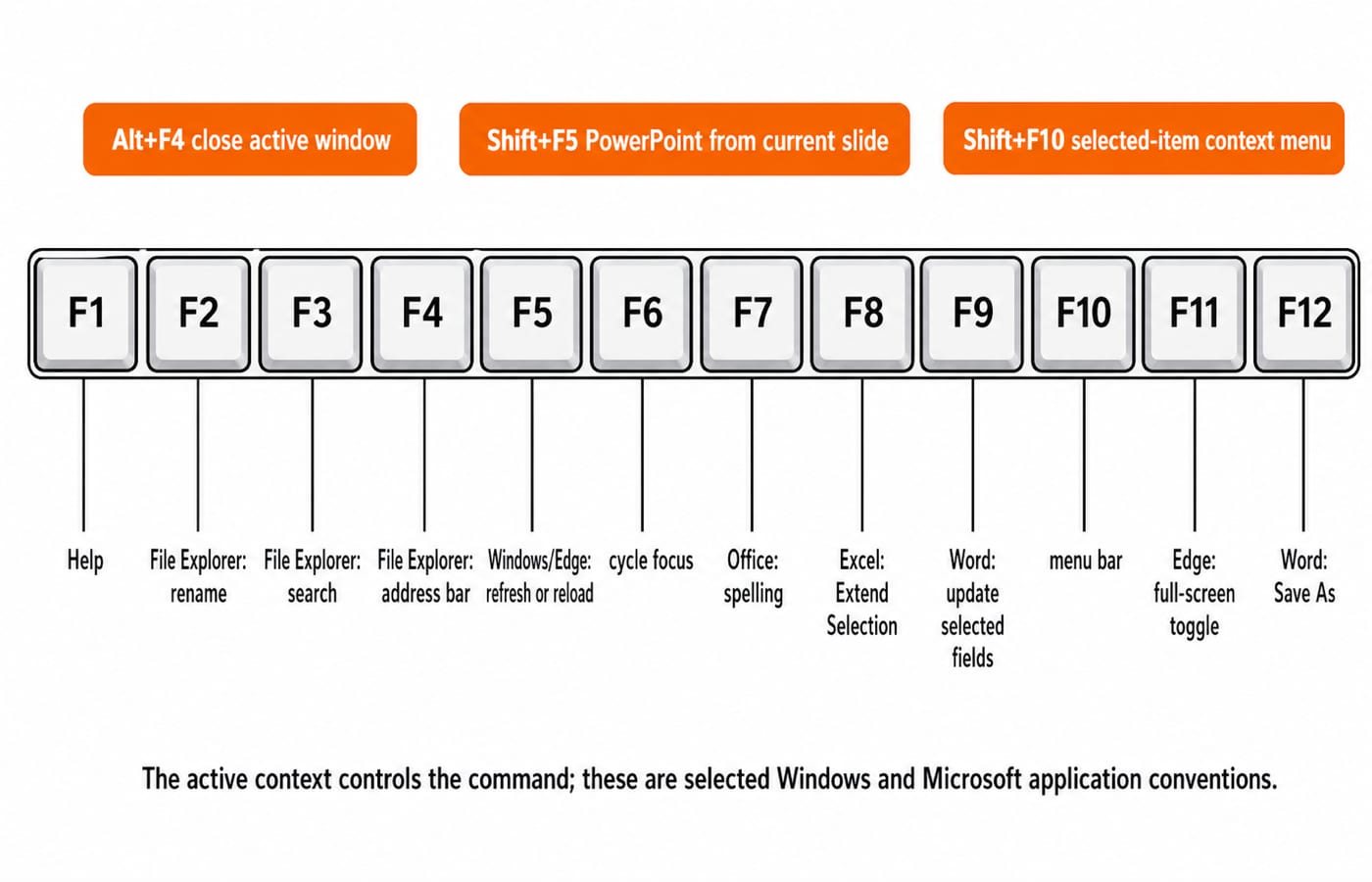
Memorising one verb beside each of F1 through F12 fails because the same key can perform a different command in Windows, Edge, File Explorer, Word, Excel or PowerPoint. Function-key questions are best solved with a context-first map, a nine-command worked classification and a method for rejecting modifier and laptop-key traps. Windows, Edge, File Explorer, Word, Excel and PowerPoint each assign their own actions, while other systems, versions and devices may differ. For hardware, software, internet and digital-learning foundations beyond keyboard commands, revise ICT for Teaching Exams: Fundamentals Explained.
1. Function keys F1-F12 are a command layer, not twelve universal commands
Function keys are the labelled keys F1 through F12, commonly arranged above the alphanumeric row. The active operating system, application or device firmware interprets each press. The label stays fixed, but the action changes. F5 is a label; refresh, reload, Go To and start slide show are context-dependent actions.
Decode each question in three steps:
Identify the active context.
Check for a modifier such as
Shift,CtrlorAlt.Map the complete shortcut to its action.
If no application is named, use only the broad convention supported by the wording, not an imported Office-specific meaning.
Laptops add a hardware layer: a top-row key may also show a media icon. The Fn setting chooses the layer, and its default and lock method vary by device. No Fn-lock shortcut works on every laptop.
2. Function keys F1-F4: help, rename, search and context-dependent F4 actions
Key | Named context | Common action | Exam trap |
|---|---|---|---|
| Many Windows applications and Microsoft Edge | Opens Help | A convention, not a hardware law |
| File Explorer | Renames the selected item | Select the item first |
| File Explorer; Edge | Searches for a file or folder; finds within the tab | Context changes the target |
| File Explorer; Excel | Selects the address bar; repeats the last repeatable command or cycles cell-reference forms while editing a formula | Plain |
A modifier creates a new shortcut. Alt+F4 closes the active window or application. Ctrl+F4 commonly closes the current document, workbook window or browser tab in supporting applications. Neither is a hardware-level law.
Two checks: rename selected notes.txt in File Explorer with F2, not F4. Close that window with Alt+F4, not plain F4. Context and modifier both matter.
3. Function keys F5-F8: refresh, focus, spelling and selection
Key | Named context | Common action | Exam trap |
|---|---|---|---|
| Windows window; Edge; PowerPoint; Excel | Refreshes the window; reloads the tab; starts from slide 1; opens Go To | It does not always mean refresh |
| PowerPoint | Starts from the current slide | Plain |
| Windows; Edge | Cycles through window or desktop elements; focus areas or panes | Focus stays context-specific |
| Supported Microsoft Office applications | Starts spelling review | No universal default |
| Excel | Toggles Extend Selection mode | No universal default |
PowerPoint's F5 shows why shortcuts vary by application: it starts a slide show from the beginning, while Windows and Edge use F5 for refresh or reload and Excel opens Go To. For the broader Word, Excel and PowerPoint shortcut set, revise MS Office for CS Teaching Exams.
The legacy claim that F8 always opens Safe Mode is also unsafe. Startup behaviour depends on the system version, boot configuration and hardware.
4. Function keys F9-F12: update, menus, full screen and Save As
Key | Named context | Common action | Exam trap |
|---|---|---|---|
| Word; Edge | Updates selected fields; enters or exits Immersive Reader | Word's action is not universal |
| Windows application | Activates the menu bar |
|
| Edge; File Explorer | Toggles full screen; maximises or minimises the active window | A toggle needs two presses to enter and leave |
| Word; Edge | Displays Save As; opens Developer Tools | Save As is correct only in a supporting context |
Memorise context + key + action, such as Word + F12 + Save As, not F12 + Save As alone.
5. Function-key worked example: classify nine command presses across eight prompts
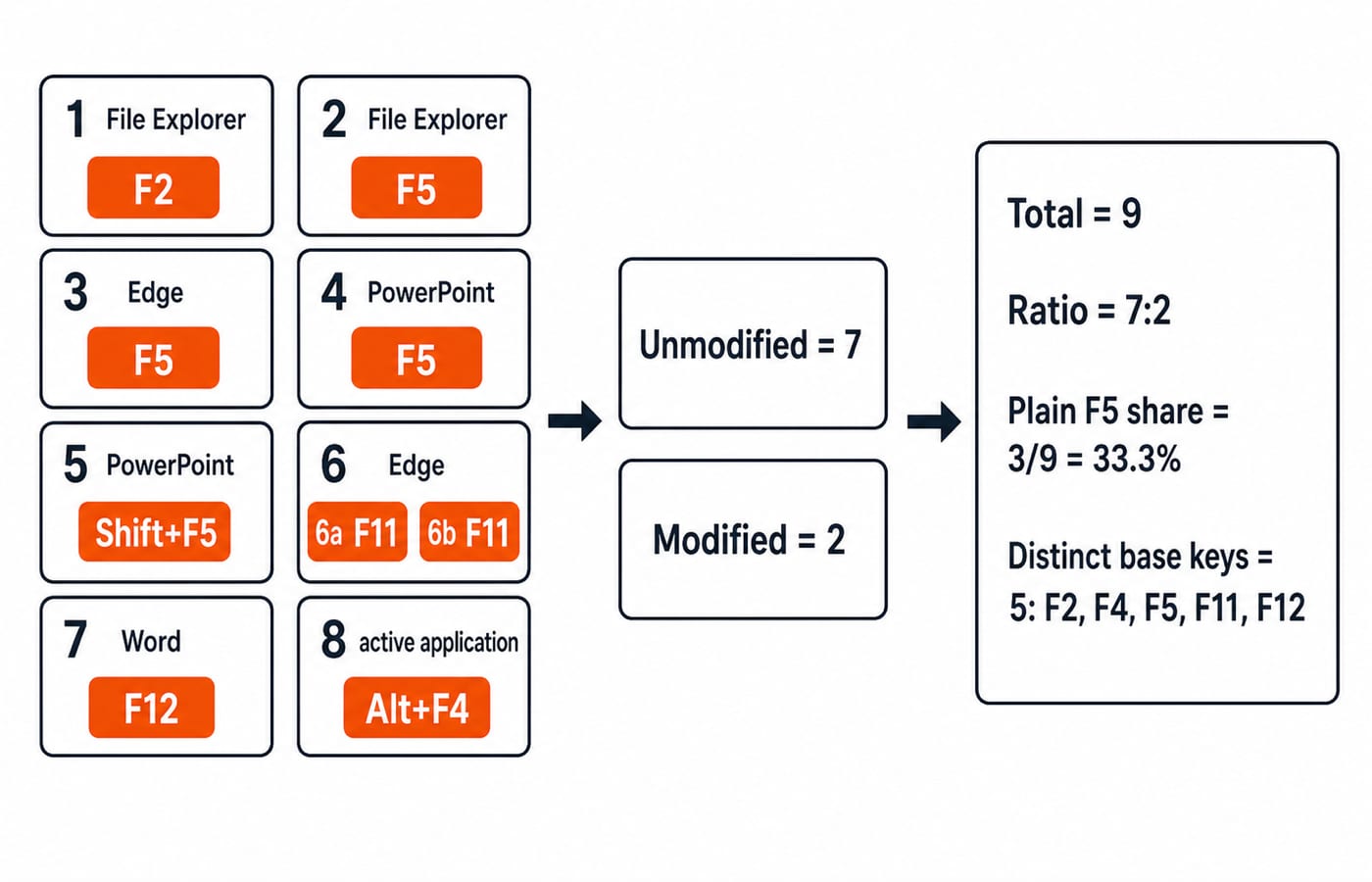
Each prompt can be solved independently. Prompt 6 needs two presses because entering and leaving full screen are separate toggle actions.
Prompt | Active context | Correct shortcut | Reason |
|---|---|---|---|
1. Rename a selected file | File Explorer |
| Renames the selected item |
2. Refresh the window | File Explorer |
| Refreshes the active window |
3. Reload the current tab | Edge |
| Reloads the tab |
4. Start from slide 1 | PowerPoint |
| Starts from the beginning |
5. Start from the current slide | PowerPoint |
| Changes the starting point |
6. Enter, then leave full screen | Edge |
| Toggles the state twice |
7. Open Save As | Word |
| Displays Save As in Word |
8. Close the active application window | Active application |
| The modifier plus |
Prompts 1, 2, 3, 4, 5, 7 and 8 need one command each; prompt 6 needs two:
1 + 1 + 1 + 1 + 1 + 2 + 1 + 1 = 9 total command presses.
The unmodified presses are F2 once, F5 three times, F11 twice and F12 once:
1 + 3 + 2 + 1 = 7 unmodified presses.
Shift+F5 and Alt+F4 contribute one modified press each, giving 2. Thus unmodified to modified is 7:2.
Plain F5 contributes 3/9 = 1/3 = 33.3% of all presses, rounded to one decimal place. The base labels {F2, F4, F5, F11, F12} give 5 distinct function keys. F4 is the base key inside Alt+F4.
6. Function-key traps: context, modifiers, toggles and laptop Fn behaviour
Trap | Why it fails | Correct rule |
|---|---|---|
Every F-key has one universal meaning | Software interprets the key | Always name the active context |
Plain | It omits the required modifier | Use |
| PowerPoint and Excel assign other actions | Map the complete context and key |
One | A single press changes the state once | Count one press to enter and another to leave |
| Startup routes vary | Qualify legacy startup behaviour |
A laptop media icon blocks the F-key command | The keyboard has device-specific layers | Check the device's |
A Windows question should use Windows mappings; macOS mappings belong only in an explicit comparison.
For “start the slide show from the current PowerPoint slide,” reject F5, which starts from the beginning, and Alt+F5, which invokes Presenter View. Choose Shift+F5. Naming every action is safer than memorising one option.
7. Function keys F1-F12 in exams: recognise the four recurring question forms
Recognise four durable question forms:
Direct match: File Explorer rename maps to
F2.Application-context match: Edge full screen maps to
F11.Modifier discrimination:
F5andShift+F5start PowerPoint from different places.Multi-statement or counting: the worked example asks for nine commands across eight prompts.
An answer can change with the application. In 20 seconds: underline the context, circle modifiers, mark toggles, write context + shortcut + action, then eliminate choices valid only elsewhere. If two answers fit different valid contexts, the item is ambiguous, not universal.
For wider Paper 1 study, browse the UGC NET Preparation Courses and Test Series.
8. Function keys F1-F12: the short version and next practice step
The key label is fixed, the application supplies the action, and a modifier creates another shortcut. Remember: F2 renames in File Explorer, F5 refreshes or takes a PowerPoint action, Alt+F4 closes, F11 toggles Edge full screen and F12 opens Word's Save As.
Make twelve cards with context + key on the front and the action on the back. Redo the worked set until you reproduce 9, 7:2, 33.3% and 5 distinct base keys. Test only in the named application.
For a sequenced route, try the NTA UGC NET Paper 1 Course. For focused practice, use the UGC NET Paper 1 Test Series.
Keep learning
E-Waste Management Explained: Lifecycle, Worked Recovery Example and Exam Traps
Learn how e-waste moves from use to reuse, recycling and controlled residue. A hypothetical 600 kg batch shows how to close the mass balance and avoid denominator traps.
Updated 16 Oct 20266 min readUGC NET Computer Science

Data Protection, IPR and Open Source Explained: Two Worked Cases and Exam Traps
Separate privacy from security, match IP rights to software assets, and solve two numerical cases on data minimisation and mixed-licence releases.
Updated 12 Oct 20266 min readUGC NET Computer Science

Common Software & Tools MCQs: 12 Solved ICT Questions Explained
Attempt 12 previous-year ICT MCQs before reading concise explanations that separate applications, hardware, web tools, abbreviations, malware and operating systems.
8 Oct 20267 min readUGC NET Computer Science

ICT in Education MCQs: 12 Solved Questions on Digital Learning Tools
Solve 12 ICT in Education MCQs, then use clear explanations and a five-layer model to separate files, tools, platforms and public initiatives.
Updated 3 Oct 20268 min readUGC NET Computer Science