MS Office and digital classroom tools for CS teaching exams
Word, Excel and PowerPoint core features, shared shortcuts and formula basics, plus digital classroom tools, taught the way DSSSB and KVS ICT sections test them for computer science teaching posts.
KnowledgeGate Team
Exam prep & CS education
Updated 18 Jul 20265 min read
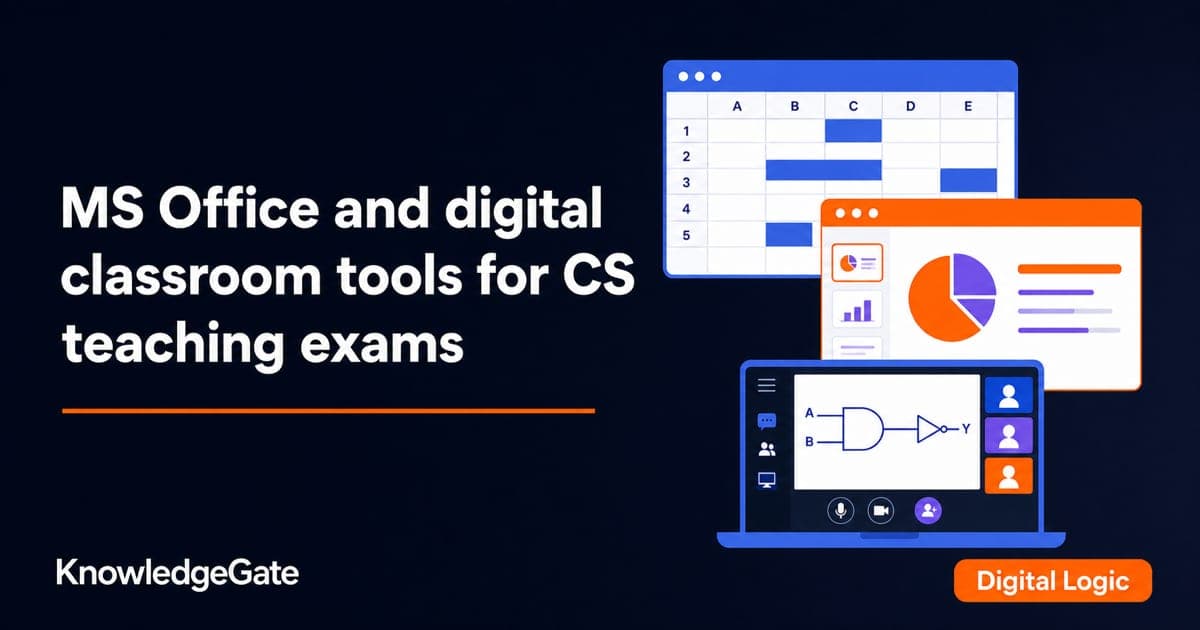
MS Office is the most quietly reliable scoring area in the ICT part of a computer science teaching paper. The questions are practical and repetitive: a keyboard shortcut, what a feature does, how a formula is written. If you have actually used Word, Excel, and PowerPoint, most of these are recall. If you have only read about them, they are surprisingly easy to lose. The fix is small and specific: the shared Ctrl shortcuts, a handful of Excel formulas, and two or three look-alike distinctions the paper keeps returning to.
The questions test durable, general behaviour, not obscure version-specific menu placements. Learn the concepts and the common shortcuts, which are stable across recent versions, and do not chase edge details that change from one release to the next.
MS Word: documents, formatting, and shortcuts
Word is a word processor: you create, edit, format, and print text documents. The exam favours a small, stable set of ideas.
Core features. Formatting text (font, size, bold, italic, underline), paragraph alignment, bullet and numbered lists, tables, headers and footers, spell check, and mail merge. Mail merge, which produces many personalised documents from one template and a data source, is a repeat favourite.
Common shortcuts. Ctrl+C copy, Ctrl+X cut, Ctrl+V paste, Ctrl+Z undo, Ctrl+Y redo, Ctrl+B bold, Ctrl+I italic, Ctrl+U underline, Ctrl+S save, Ctrl+P print, Ctrl+A select all, Ctrl+F find. These are shared across the whole suite, so learning them once pays off everywhere.
File format. The modern Word document extension is .docx.
MS Excel: cells, formulae, and functions
Excel is a spreadsheet: data lives in a grid of cells addressed by column letter and row number, such as A1 or C5. This is the richest question source in the suite because it has a small formula language.
Every formula begins with an equals sign. A few worked essentials:
=A1+B1 adds the values in two cells.
=SUM(A1:A10) adds a range, the colon meaning "through".
=AVERAGE(A1:A10) returns the mean of the range.
=MAX(A1:A10) and =MIN(A1:A10) return the largest and smallest values.
=COUNT(A1:A10) counts the numeric cells in the range.
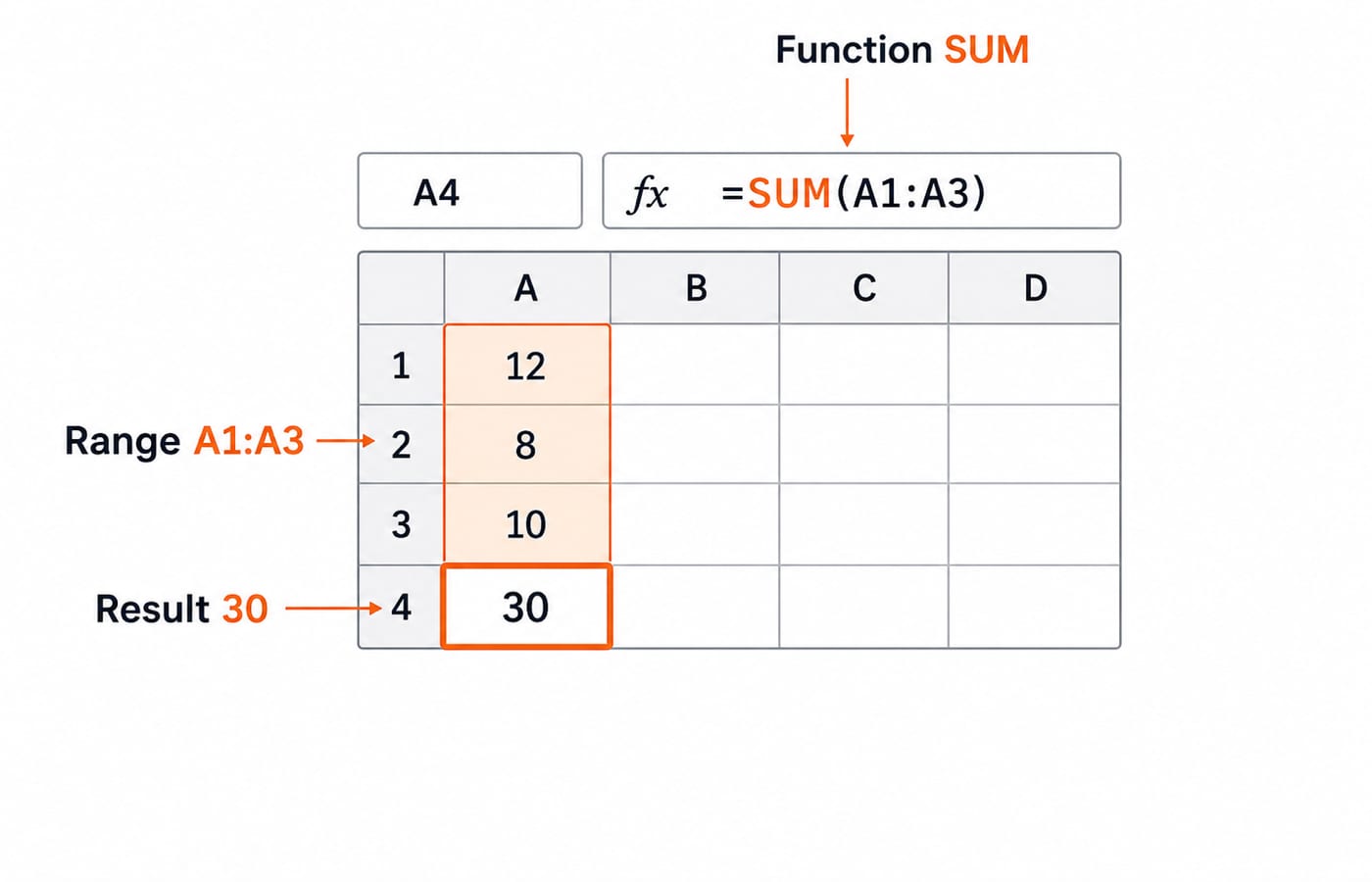
Work that figure the way the paper asks you to. A1 holds 12, A2 holds 8 and A3 holds 10. Cell A4 holds =SUM(A1:A3), so Excel adds the three cells in the range and shows 30. Now change A2 from 8 to 18: A4 becomes 40 by itself, because the formula points at the cells, not at the numbers you once typed. That is the single idea behind every spreadsheet question, and papers test it by asking what a cell displays after a value changes.
Two ideas the paper tests often. A cell reference can be relative (A1, which shifts when you copy the formula elsewhere) or absolute ($A$1, which stays fixed); the dollar sign is the marker. Copy =A1+B1 from row 1 down into row 2 and it reads =A2+B2, because both references shifted with it; copy =$A$1+B1 down and it reads =$A$1+B2, because the locked reference cannot move. And the standard Excel workbook extension is .xlsx.
MS PowerPoint: slides and presentations
PowerPoint builds slide-based presentations, which maps directly onto a teacher's daily work, so ICT sections like it.
Core features. Slides, slide layouts, the slide master (one place to set a consistent look), transitions between slides, and animations within a slide.
Running a show. The shortcut to start a slideshow from the first slide is F5; press Esc to end it. A presentation file uses the .pptx extension.
The distinction to hold. A transition is the effect between one slide and the next; an animation is the effect applied to an element on a single slide. Questions swap these two to test whether you know the difference.
Digital classroom and e-learning tools
ICT sections also ask about the technology a teacher actually operates. MOOCs, and synchronous versus asynchronous learning, are defined in our ICT for teaching exams guide; the classroom-facing tools below are the ones that turn up beside the MS Office questions.
A Learning Management System (LMS) is a platform to deliver, track, and manage courses and learners online.
A projector or interactive whiteboard turns a computer display into a shared classroom surface, and because an interactive whiteboard also accepts touch, it counts as an input and an output device at once.
Video-conferencing tools support live remote classes, and presentation and document tools support blended learning that mixes in-person and online teaching.
Digital assessment tools let a teacher set quizzes, collect responses and grade online, which is why a question usually asks which tool fits a stated classroom task rather than what the tool is called.
These questions reward plain understanding of what each tool is for, so a teacher's practical familiarity is a genuine advantage. You do not need to memorise product menus; you need to know what an LMS is, what an interactive whiteboard does, and why a school would use them, which is the level the paper actually pitches at.
How MS Office is tested in teaching exams
In DSSSB, KVS, and state computer science papers, MS Office and ICT tools form a compact block of one-mark objective questions inside the ICT section. The reliable patterns: identify a keyboard shortcut, state what a Word or Excel feature does, complete or read a simple Excel formula, distinguish a transition from an animation, and match a digital tool to its purpose. There are no numericals; the traps are the look-alike pairs, transition against animation and relative against absolute references. The exact number of ICT questions and any sectional weightage vary by notification, so confirm them on the recruiting body's own document; for the Delhi papers that is dsssb.delhi.gov.in.
Our question bank carries over 900 ICT questions, and MS Office and classroom-technology items make up a large share of them, so practising there mirrors the real paper closely.
Your next step
The fastest way to lock these marks in is to sit with each application for an hour and use the features while you revise. To prepare the whole computer science teaching syllabus, ICT included, the Teaching Recruitment Exams bundle sequences the CS core across the major posts, and the DSSSB Section A course covers the general-subjects paper that runs alongside it. The full set of guides lives in the government teaching jobs category.
The hardware, software and memory groundwork beneath ICT sits in computer fundamentals for teaching exams, worth reading first if RAM against ROM, or system against application software, is still shaky.
Learn the shared shortcuts once, get comfortable writing a simple Excel formula, keep the transition-versus-animation distinction straight, and know what each classroom tool is for. That is the whole of the MS Office block, and it is among the safest marks on the paper.
Keep learning
MS Word Basics: Editing, Formatting, a Worked Document and Exam Traps
Learn how Word applies commands to characters, paragraphs, pages and files. Build an ICT revision plan, audit every state change and avoid common exam traps.
Updated 23 Oct 20266 min readTeaching Recruitment (Computer Science)
Excel Functions and Charts Explained: Formulas, a Worked Sheet and Exam Traps
Learn how Excel formulas, references and charts work by building one mock-test worksheet from scratch. Every output is calculated and every common trap has a fix.
Updated 19 Oct 20265 min readTeaching Recruitment (Computer Science)
Digital Society Explained: Core Concepts, a Worked Inclusion Audit and Exam Patterns
Learn to separate access, skills and outcomes, audit digital inclusion with a worked funnel, apply data minimisation and solve common exam cases.
Updated 15 Oct 20266 min readTeaching Recruitment (Computer Science)
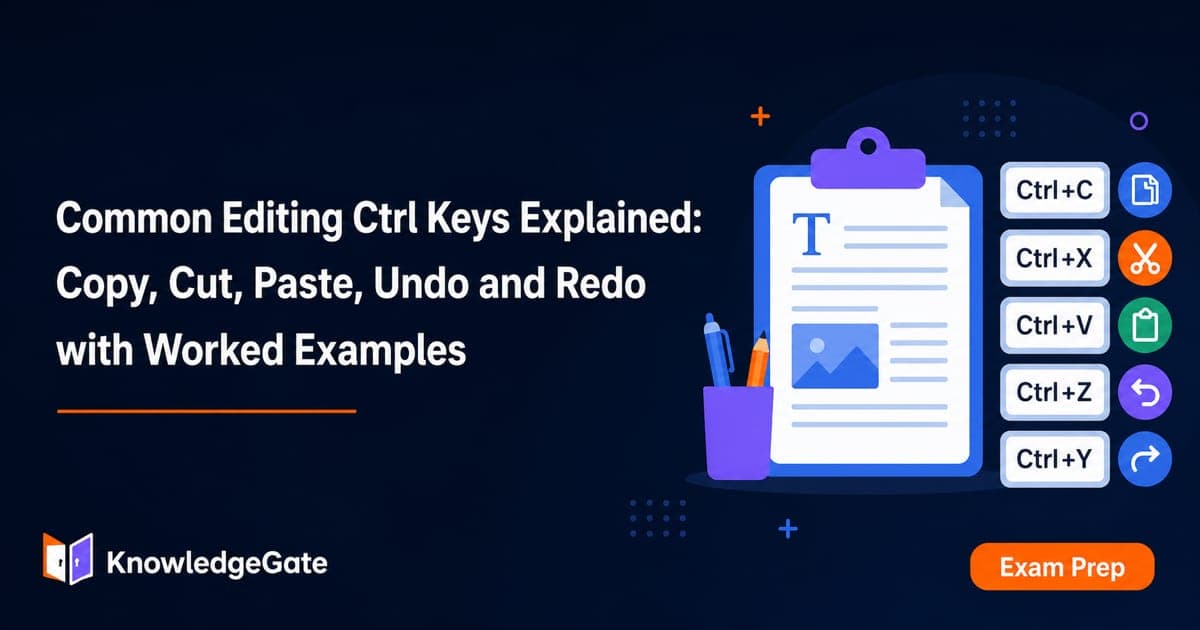
Common Editing Ctrl Keys Explained: Copy, Cut, Paste, Undo and Redo with Worked Examples
Learn what each common Ctrl key does, then trace the document, clipboard, cursor and edit history through precise examples without confusing Copy, Cut or Undo.
Updated 11 Oct 20266 min readTeaching Recruitment (Computer Science)