Common Editing Ctrl Keys Explained: Copy, Cut, Paste, Undo and Redo with Worked Examples
Learn what each common Ctrl key does, then trace the document, clipboard, cursor and edit history through precise examples without confusing Copy, Cut or Undo.
KnowledgeGate Team
Exam prep & CS education
Updated 11 Oct 20266 min read
Ctrl+C, Ctrl+X, Ctrl+V, Ctrl+Z and Ctrl+Y are easy to recite but easy to confuse when a question gives you selected text, a cursor position and several operations. The reliable method is to track four things after every key press: the document, selection or cursor, clipboard and edit history. That method also handles longer sequences cleanly. Readers who need the wider context first can begin with ICT for Teaching Exams: Fundamentals Explained.
Common editing Ctrl keys: organise the shortcuts by purpose
A keyboard shortcut combines a modifier key with another key. Ctrl+C means hold Ctrl, press C, then release them. Its capital letter does not require Shift. In a typical question, text is selected or the cursor is at an insertion point.
Shortcut | Action | What changes | What does not change |
|---|---|---|---|
| Select All | Current selection | Text and clipboard |
| Copy | Clipboard | Source text |
| Cut | Text and clipboard | Unselected text |
| Paste | Text at cursor or selection | Clipboard in the simple model |
| Undo | Most recent editable action | Usually the clipboard |
| Redo | Reapplies the undone action | Usually the clipboard |
| Save | Saved version of the file | Visible text and clipboard |
| Find | Search state and match highlight | Document text |
| Replace | Text, if a replacement is performed | Unmatched text |
Always track document text, selection or cursor, clipboard, and undo or redo history. For files, software and input devices, see Computer Fundamentals for CS Teaching Exams. Keep formatting separate: Ctrl+B, Ctrl+I and Ctrl+U usually mean Bold, Italic and Underline.
Copy, cut and paste: track the document and clipboard separately
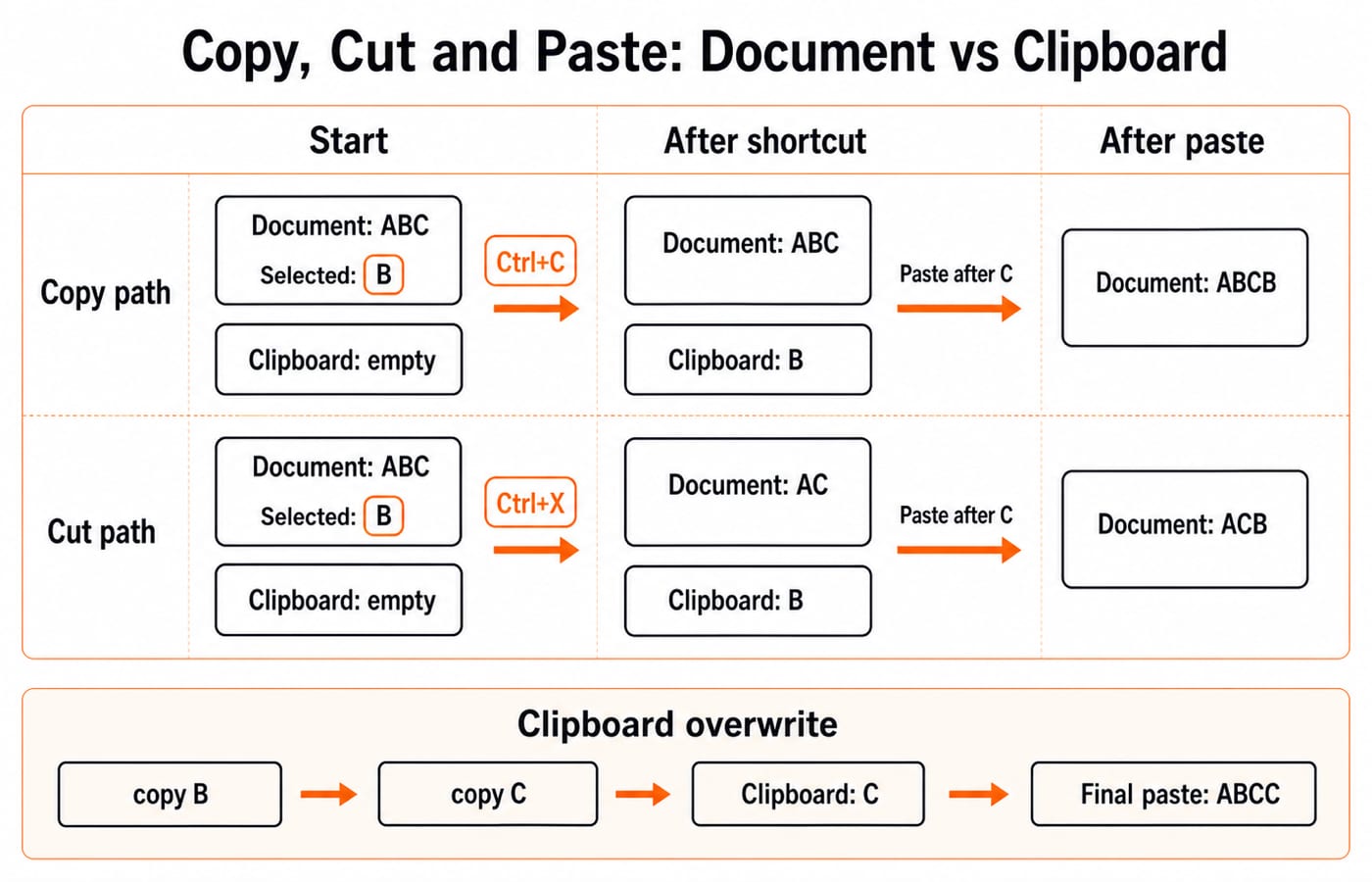
Copy puts selected content on the clipboard and preserves the source. Cut puts it on the clipboard and removes the source. Paste inserts the clipboard item at the cursor or replaces a selection.
In ABC, select B and press Ctrl+C. The document stays ABC and the clipboard becomes B. Paste after C to get ABCB. Reset to ABC, Cut selected B, and the states become document AC, clipboard B; Paste after C gives ACB.
The latest Copy or Cut overwrites the previous item in the simple clipboard model. Copy B, then C, and the clipboard contains C. Paste after the final C to produce ABCC. Repeated Paste operations reuse the item until Copy or Cut replaces it.
Ctrl key worked example: move, undo, redo and duplicate text
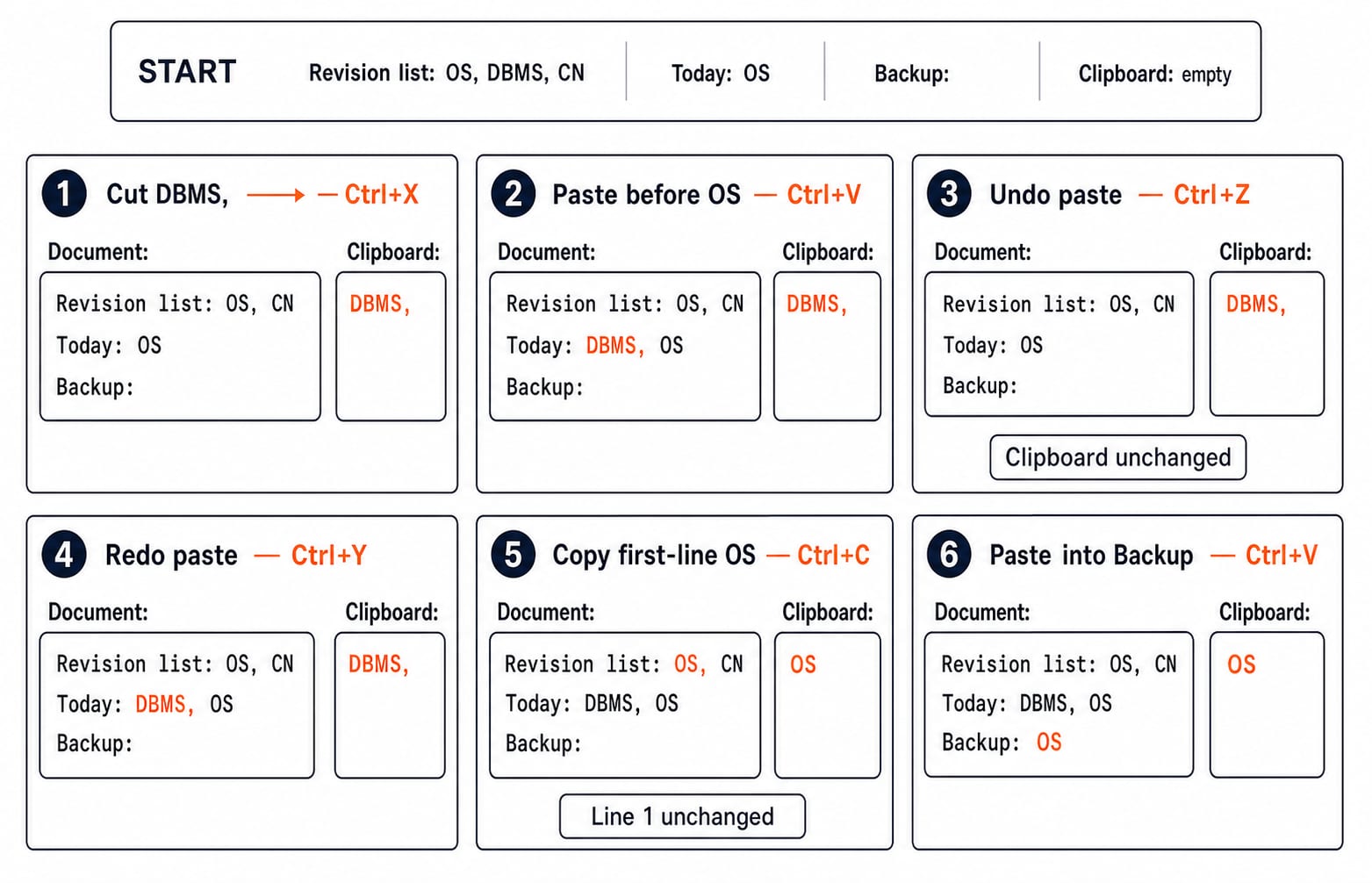
Begin with this exact editor state:
Revision list: OS, DBMS, CN
Today: OS
Backup:
The line 3 insertion point follows the colon and its trailing space. The clipboard is empty.
Select
DBMS,on line 1 and pressCtrl+X. Line 1 becomesRevision list: OS, CN; the clipboard becomesDBMS,.Put the cursor immediately after
Today:, beforeOS, and pressCtrl+V. Line 2 becomesToday: DBMS, OS.Press
Ctrl+Z. Only the paste is undone. Line 2 returns toToday: OS, line 1 staysRevision list: OS, CN, and the clipboard still containsDBMS,.Press
Ctrl+Y. Redo restores line 2 toToday: DBMS, OS.Select the first
OSon line 1 and pressCtrl+C. The line does not change, but the clipboard is replaced byOS.Put the cursor after
Backup:and pressCtrl+V. Line 3 becomesBackup: OS.
Final state: Revision list: OS, CN, Today: DBMS, OS, Backup: OS; clipboard OS. DBMS moved because Cut removed its source. OS was duplicated because Copy preserved it.
Undo and redo: follow the edit history, not the clipboard
Undo reverses the latest action; Redo reapplies it. Follow CAT -> type S -> CATS -> Ctrl+Z -> CAT -> Ctrl+Y -> CATS. Copy changes the clipboard, while Cut and Paste edit the document and can normally be undone.
Now start at CATS, undo to CAT, then type ! to get CAT!. This new edit creates another history branch, so ordinary Redo cannot restore the discarded S. That is the standard concept-question model, though history limits vary. Ctrl+Y is the usual Redo command in Windows and Microsoft Office style questions. Some applications use Ctrl+Shift+Z, so software-specific wording controls.
Select All, Save, Find and Replace: related commands with different effects
In OS | DBMS | CN | DBMS, Ctrl+F for DBMS locates two occurrences without changing text. With Ctrl+H, Find DBMS, replace it with Database Systems, then choose Replace All. The result is:
OS | Database Systems | CN | Database Systems
Ctrl+A selects the whole document or editable field but does nothing else. From the original string, follow it with Ctrl+C to copy everything, or Delete to remove everything selected.
Ctrl+S saves without changing visible text or clipboard. Ctrl+F searches; Ctrl+H can edit through replacement. Continue with MS Office for CS Teaching Exams for application-level shortcuts.
Common Ctrl key traps: eliminate the tempting wrong pair
Ctrl+Xis Cut, not Copy. It removes selected text.Ctrl+Vis Paste, not Copy. It inserts clipboard content.Ctrl+Zis Undo, not Redo;Ctrl+Yis Redo, not Undo.Ctrl+Ais Select All, not Save.Ctrl+Ffinds, whileCtrl+Hopens Find and Replace in the standard office model.Ctrl+B,Ctrl+IandCtrl+Uusually mean Bold, Italic and Underline, not Backspace, Insert and Undo.
Note the selection and cursor. If AT is selected inside DATA, only AT is affected. If the cursor is at the end, Paste occurs there. Do not invent an unstated selection because no-selection behaviour varies.
Use the simple model unless told otherwise: the clipboard holds the latest copied or cut item. Apply multi-item histories, special Paste commands, undo limits or different key bindings only when the question states them.
How questions test common editing Ctrl keys: matching and output traces
Questions can match commands, test text-preserving actions, trace Cut and Paste, identify the latest clipboard item, or distinguish Undo from Redo.
Try these exact checks:
In
DATA, select the middleAT, pressCtrl+X, move the cursor to the end and pressCtrl+V. After Cut the text isDA; after Paste it isDAAT.In
NET, selectN, pressCtrl+C, move the cursor afterTand pressCtrl+Vtwice. The text progresses fromNETtoNETNtoNETNN.Search for
DBMSinDBMS DBMS OSwithCtrl+F. It finds two matches and leaves the string unchanged.
For longer traces, make four columns: operation, document, clipboard, and selection or cursor. Use one row per key press, then check: Cut removes, Copy preserves, Paste inserts, Undo reverses, Redo reapplies.
Common editing Ctrl keys: the short version and next step
Recall: A selects All, C Copies, X Cuts, V Pastes, Z Undoes and Y Redoes. Next come S for Save, F for Find and H for Replace. Copy B in ABC and paste at the end to get ABCB; Cut it first and Paste to get ACB.
For a 60-second self-test, reproduce the revision-list states, then solve NET plus two pastes to reach NETNN. Write the document, clipboard and cursor whenever uncertain.
For structured exam preparation, consider the RSSB Basic Computer Instructor Course. To compare other teaching-recruitment routes, explore Govt Teaching Job Exam Preparation. Neither is required for learning these shortcuts.
Keep learning

Browsers and Search Engines MCQs: 9 Solved Questions with Explanations
Solve nine published browser and search engine questions, check each answer, and rebuild the browser, cache, crawler and indexing distinctions that exam distractors blur.
Updated 6 Oct 20267 min readTeaching Recruitment (Computer Science)

IT Act, 2000 Explained: Key Sections, Digital Signatures and Worked Exam Examples
Build an exam-ready map of the IT Act, then apply it to an exact digital-signature walkthrough and a section 43, 66, 66C and 66D caselet.
Updated 2 Oct 20266 min readTeaching Recruitment (Computer Science)

Emerging Trends Introduction MCQs: 12 Solved Questions with Explanations
Solve 12 Emerging Trends Introduction questions with clear answer logic, exam-year labels and a compact trap check for focused revision.
Updated 27 Sep 20268 min readTeaching Recruitment (Computer Science)
MS Word Basics MCQs with Answers: 12 Solved Questions Explained
Work through 12 MS Word questions covering everyday commands, page layout, formatting, links, file features and mail merge. Each answer explains the decisive clue and the closest distractor.
Updated 25 Sep 20267 min readTeaching Recruitment (Computer Science)