Excel Functions and Charts Explained: Formulas, a Worked Sheet and Exam Traps
Learn how Excel formulas, references and charts work by building one mock-test worksheet from scratch. Every output is calculated and every common trap has a fix.
KnowledgeGate Team
Exam prep & CS education
Updated 19 Oct 20265 min read
Remembering names such as SUM and AVERAGE is not enough when a question asks what a copied formula returns or which chart suits a table. You need to see how cells, references, functions and charts connect. A five-row mock-test sheet connects cells, references, functions and charts, with calculated results, a safely copied IF formula, and a chart of the same values.
Excel functions and charts: start with the worksheet mental model
An Excel workbook contains worksheets. Each worksheet has rows, columns and cells. B2 identifies one cell, while B2:B6 is the continuous range from B2 through B6. The colon means a range, not subtraction.
A value is stored content, such as 42. =B2+B3 is a formula using an operator. =SUM(B2:B3) is a formula containing the predefined SUM function. A calculation begins with =.
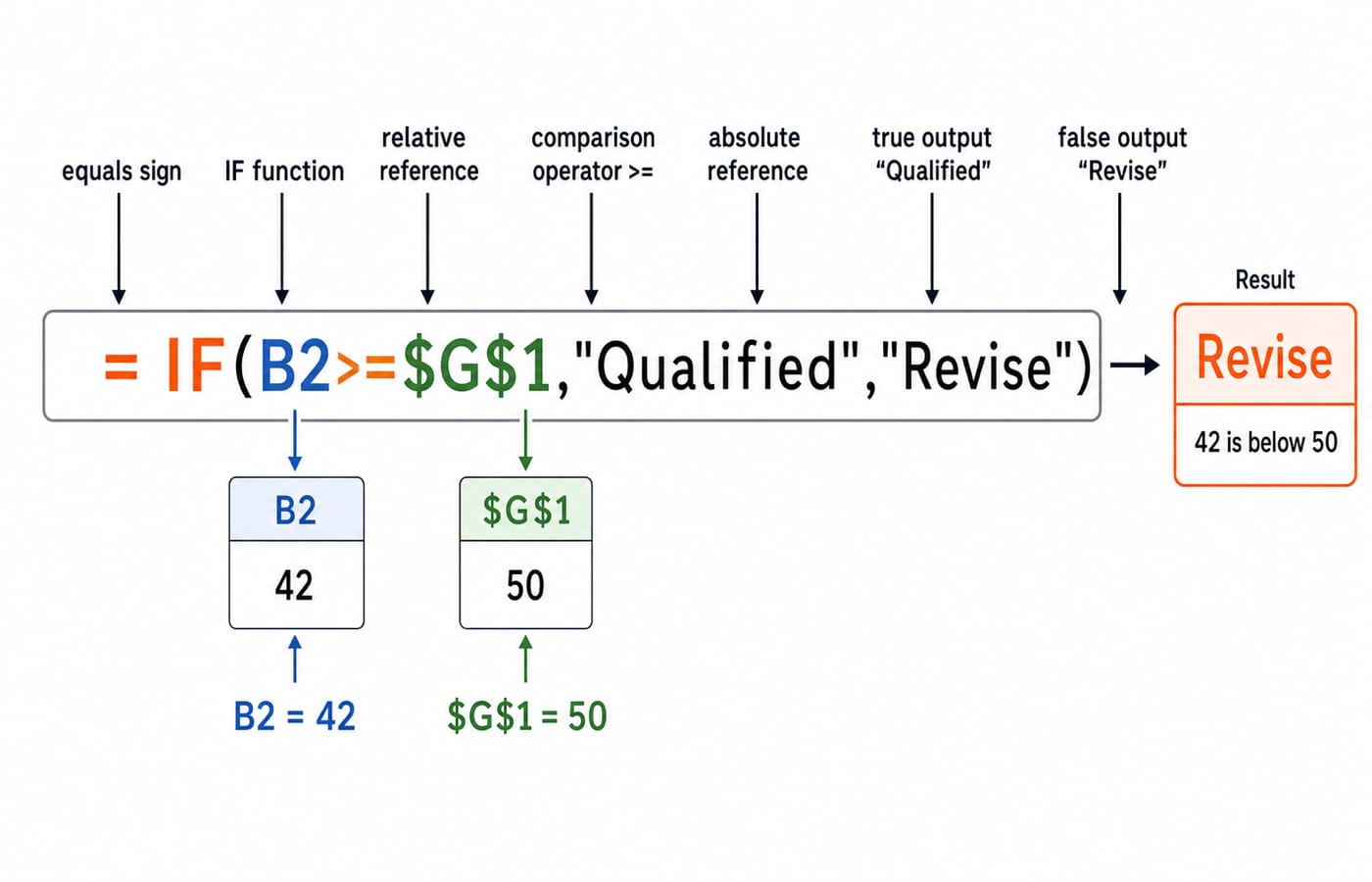
Now parse =IF(B2>=$G$1,"Qualified","Revise"):
IFis the function name, written before the opening parenthesis.Its three comma-separated arguments are the test, true result and false result.
B2>=$G$1compares B2 with the threshold in G1.The text outputs
"Qualified"and"Revise"need quotation marks.
Place Excel within the Office suite with MS Office for CS Teaching Exams. For a cross-application workflow that carries one score set through Excel, Word and PowerPoint, use MS Office Applications for Knowledge of ICT; this worksheet stays inside Excel and traces copied references, function outputs and chart choice.
Excel cell references: relative, absolute and mixed references
B2 is relative: copied one row down, it changes to B3. $G$1 is absolute, so column G and row 1 stay fixed. $G1 fixes only the column; G$1 fixes only the row.
With B2=42, B3=58 and G1=50, the row 2 formula returns Revise. Copied down, it becomes =IF(B3>=$G$1,"Qualified","Revise") and returns Qualified.
If you write G1 instead of $G$1, copying down makes the threshold drift to G2, G3 and onward. Lock the single threshold cell before filling the formula.
Excel functions: know the job, syntax and return value
Use the scores 42, 58, 61, 49, 70 in B2:B6:
Function | Job | Return value |
|---|---|---|
| Adds all scores |
|
| Finds the arithmetic mean |
|
| Finds the highest score |
|
| Finds the lowest score |
|
| Counts numeric cells |
|
| Counts scores at least 50 |
|
With text labels Mock 1 through Mock 5 in A2:A6, =COUNT(A2:A6) returns 0, while =COUNTA(A2:A6) returns 5. COUNT handles numbers; COUNTA handles non-empty cells. AVERAGE ignores blanks but includes a numeric zero, which lowers the result.
Function names are normally case-insensitive, but argument order, ranges and criteria syntax still matter. Know SUM, AVERAGE, MAX, MIN, COUNT, COUNTA, IF and COUNTIF.
Excel functions worked example: build and calculate one mock-test sheet
Enter this exact worksheet:
Cell range | Exact contents |
|---|---|
|
|
|
|
|
|
Enter =IF(B2>=$G$1,"Qualified","Revise") in C2 and fill to C6. The results are Revise, Qualified, Qualified, Revise, Qualified. Enter =$G$1 in D2 and fill down. Target becomes 50, 50, 50, 50, 50.
Now calculate each summary instead of trusting the displayed answer:
42+58+61+49+70=280, so=SUM(B2:B6)returns280.There are five scores, and
280/5=56, so=AVERAGE(B2:B6)returns56.The largest score is
70, and the smallest is42.=COUNTIF(B2:B6,">="&$G$1)checks against the locked threshold. It counts58, 61, 70, so it returns3.The qualifying share is
3/5=0.6. Format 0.6 as a percentage and Excel displays60%.
Excel charts: choose the chart and plot the worked values
Choose a chart from the data relationship. Column or bar charts compare discrete categories. Line charts show an ordered trend. Pie charts show one part-to-whole series. Scatter charts compare paired numeric variables. These scores are not parts of one whole, so reject a pie chart.
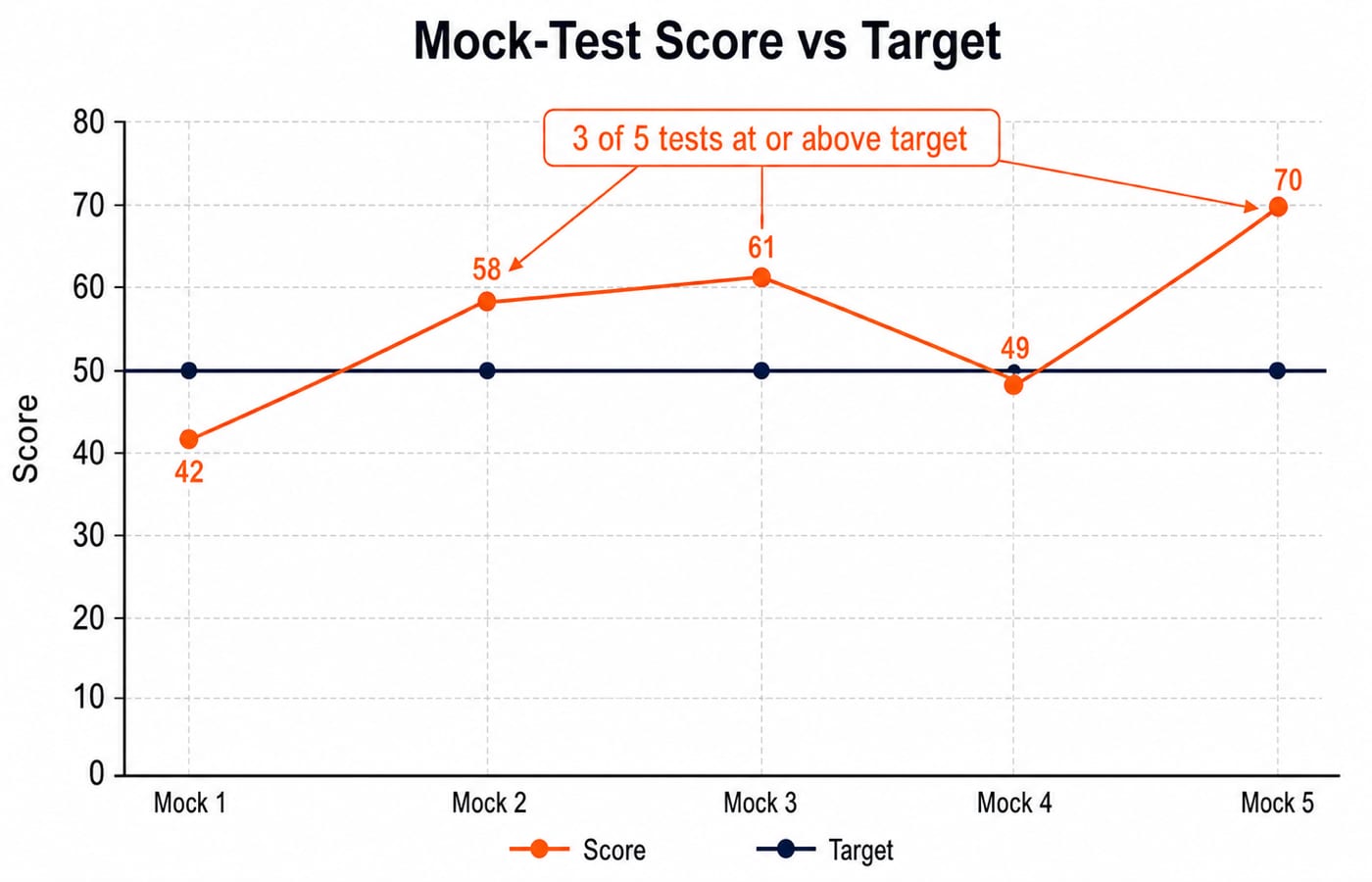
Select the Mock Test labels with the Score and Target series, then insert a two-series line chart with markers. Put Mock 1 through Mock 5 on the x-axis. Label the y-axis Score and set it from 0 to 80. Use the title Mock-Test Score vs Target and legend entries Score and Target.
The score rises from 42 to 58 to 61, falls by 61-49=12 points, then rises by 70-49=21 points. It meets or exceeds the target of 50 in three of five tests.
Excel formula and chart traps that change the answer
Trap | What goes wrong | Fix |
|---|---|---|
| Excel treats the entry as subtraction, not a range | Use a colon for the continuous range |
| The threshold drifts when the formula is copied | Lock its column and row |
| Excel may treat the text as an unknown name | Write |
COUNT on text labels |
| Use |
AVERAGE ignores a blank but includes a numeric zero. #### usually means the column is too narrow, not that the formula failed. #DIV/0! means division by zero, #NAME? often means an unrecognised name, and #VALUE! means an unsuitable value or data type.
Selecting only B2:B6 loses the Mock labels. Swapping row and column can create five one-point series. A 3-D chart makes 49 and 50 harder to compare. Select labels with both series, check the legend, and use a flat 2-D chart.
Excel functions and charts in exams: recognise the question pattern
Objective questions ask you to predict output, identify a copied reference, choose COUNT or COUNTA, recognise an error or display issue, or select the right chart.
Micro-checks: =AVERAGE(42,58,61,49,70) gives 56. Copying the IF formula changes B2 but preserves $G$1. COUNT(A2:A6)=0, while COUNTA(A2:A6)=5. A line chart best shows the ordered Mock 1 to Mock 5 trend.
SSC CGL Tier 2 Computer Knowledge: Topics and Strategy is one example of how these spreadsheet concepts fit into wider computer-knowledge preparation. For teaching-recruitment context, browse the Govt Teaching Jobs category.
Excel functions and charts: the short version and next step
Remember four rules: start calculations with =, use the correct range, lock constants before copying, and match the chart to the data relationship. In 15 minutes, recreate the sheet, verify 280, 56 and 3, then rebuild the chart without looking back.
For broader Section A preparation, the DSSSB Section A 2026 Complete Course offers a structured next step. If you only need Excel, repeat this worked sheet and then tackle fresh formulas without looking back at the examples.
Keep learning

Digital Society Explained: Core Concepts, a Worked Inclusion Audit and Exam Patterns
Learn to separate access, skills and outcomes, audit digital inclusion with a worked funnel, apply data minimisation and solve common exam cases.
Updated 15 Oct 20266 min readTeaching Recruitment (Computer Science)
Common Editing Ctrl Keys Explained: Copy, Cut, Paste, Undo and Redo with Worked Examples
Learn what each common Ctrl key does, then trace the document, clipboard, cursor and edit history through precise examples without confusing Copy, Cut or Undo.
Updated 11 Oct 20266 min readTeaching Recruitment (Computer Science)

Browsers and Search Engines MCQs: 9 Solved Questions with Explanations
Solve nine published browser and search engine questions, check each answer, and rebuild the browser, cache, crawler and indexing distinctions that exam distractors blur.
Updated 6 Oct 20267 min readTeaching Recruitment (Computer Science)

IT Act, 2000 Explained: Key Sections, Digital Signatures and Worked Exam Examples
Build an exam-ready map of the IT Act, then apply it to an exact digital-signature walkthrough and a section 43, 66, 66C and 66D caselet.
Updated 2 Oct 20266 min readTeaching Recruitment (Computer Science)