Visual Basic Programming Language: Syntax, Events and Worked Examples
Build a clear mental model of Visual Basic on .NET, then trace a Windows Forms result calculator from input validation to its final event-driven output.
KnowledgeGate Team
Exam prep & CS education
Updated 15 Aug 20267 min read
The language is Visual Basic, although learners sometimes search for “Visual Basics”. Modern Visual Basic runs on .NET and is the language behind Windows Forms applications. Classic VB is legacy context, while VBA is the automation language built into Microsoft Office. Dragging controls onto a designer is the easy half of a Windows Forms application. The half that trips people up is the typed variable, the event handler, and the validation that stands between a text box and a correct result.
What Visual Basic Is and How the Pieces Fit
Visual Basic is a readable, statically typed .NET programming language used for console programs, libraries, and user-interface applications. Visual programming lets you arrange controls in a designer, but you still write their behaviour in code. Visual does not mean “no code”.
The main Windows Forms model is simple. A form contains controls. Each control exposes properties such as Name, Text, and Enabled. A user or system action raises an event, such as Click. An event handler then runs statements, changes program state, or updates the interface.
Three names get mixed up. Visual Basic on .NET compiles against the .NET runtime and is what Visual Studio produces for a Windows Forms project. VBA runs only inside Microsoft Office applications and cannot build a standalone .NET form. Classic VB, meaning version 6 and earlier, belongs to a discontinued environment with its own runtime and its own syntax.
Core Syntax: Variables, Types, Operators and Expressions
A declaration gives a value a name and type:
Dim learnerName As String = "Anita"
Dim attempts As Integer = 3
Dim score As Decimal = 77.4D
Dim passed As Boolean = True
Const MaxScore As Integer = 100
These local variables are available only within their containing procedure or block. Option Explicit On catches undeclared names, while Option Strict On rejects unsafe implicit conversions. Together, they expose mistakes early instead of allowing confusing runtime behaviour.
Expression | Result | Meaning |
|---|---|---|
|
| Remainder |
|
| Integer quotient |
|
| Division |
|
| String concatenation |
Use & when you intentionally join text. For form input, prefer safe conversion. Integer.TryParse("84", mark) returns True and sets mark to 84. Integer.TryParse("eighty-four", mark) returns False, so the program can show a useful validation message instead of failing.
Decisions, Loops and Reusable Procedures
Consider Dim marks() As Integer = {72, 84, 90}. Its three elements sit at indices 0, 1, and 2, and a loop walks them without you naming each one:
Dim marks() As Integer = {72, 84, 90}
Dim total As Integer = 0

For Each mark As Integer In marks
    total += mark
Next
total holds 72 after the first iteration, 156 after the second, and 246 after the third. marks.Length is 3, so the average is 82. A counted For i As Integer = 0 To marks.Length - 1 loop reaches the same total by reading marks(i) directly, which is what you want when the position matters as well as the value.
An If chain can classify the result:
If average >= 75D Then
    band = "Distinction"
ElseIf average >= 60D Then
    band = "First division"
Else
    band = "Needs improvement"
End If
The value 82 selects Distinction, because an If chain stops at the first condition that holds. Order the branches from the highest threshold downwards, or a lower ElseIf can never be reached. When you are matching several discrete values rather than open-ended bands, Select Case reads more cleanly.
Move repeated calculations into a function:
Private Function AverageOf(total As Decimal, count As Integer) As Decimal
    Return total / count
End Function
AverageOf(246D, 3) returns 82D. A Sub performs an action, while a Function returns a value. Parameters should normally be ByVal; use ByRef only when changing the caller’s variable is deliberate.
From a Button Click to a Result: The Event-Driven Flow
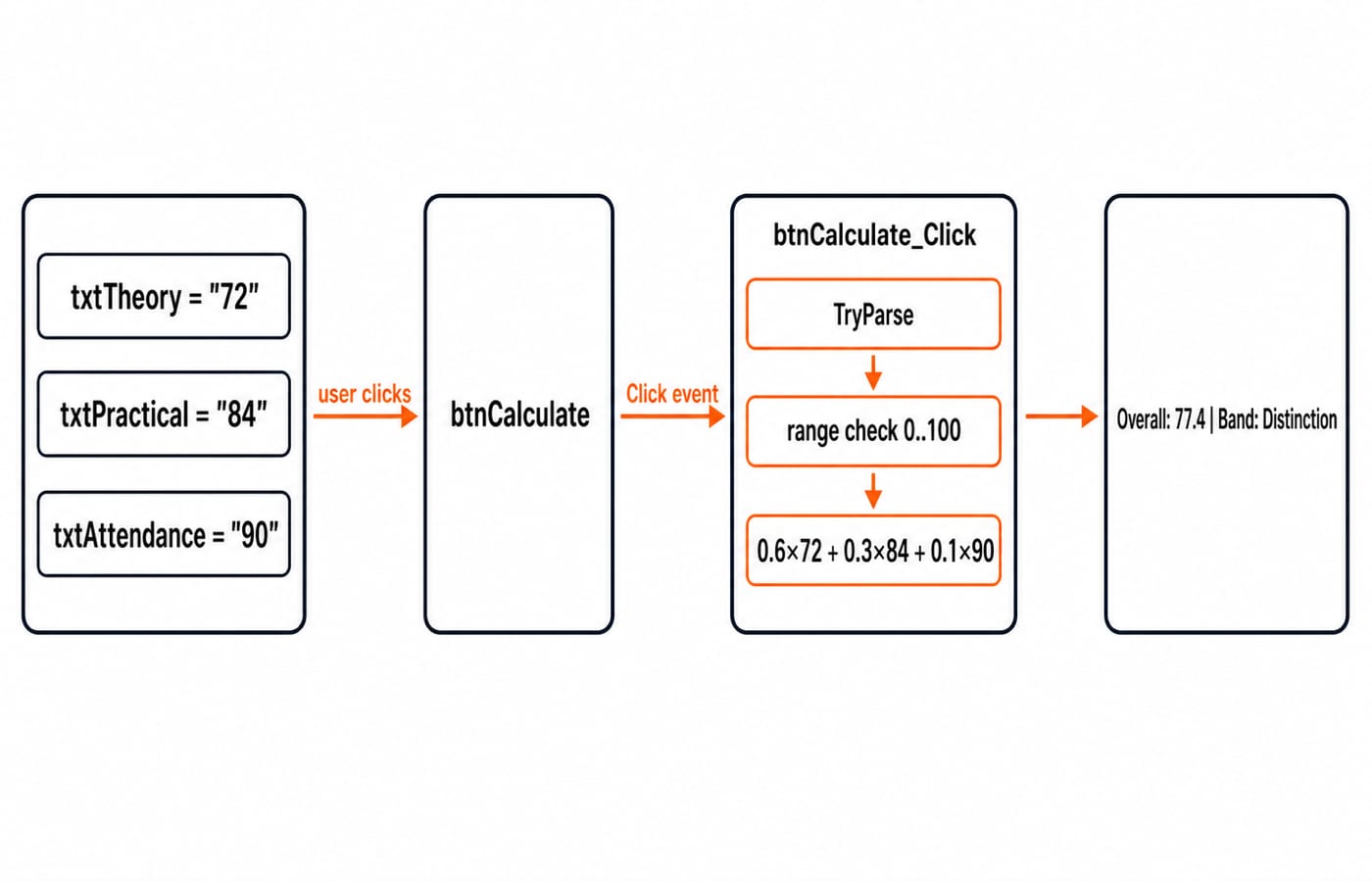
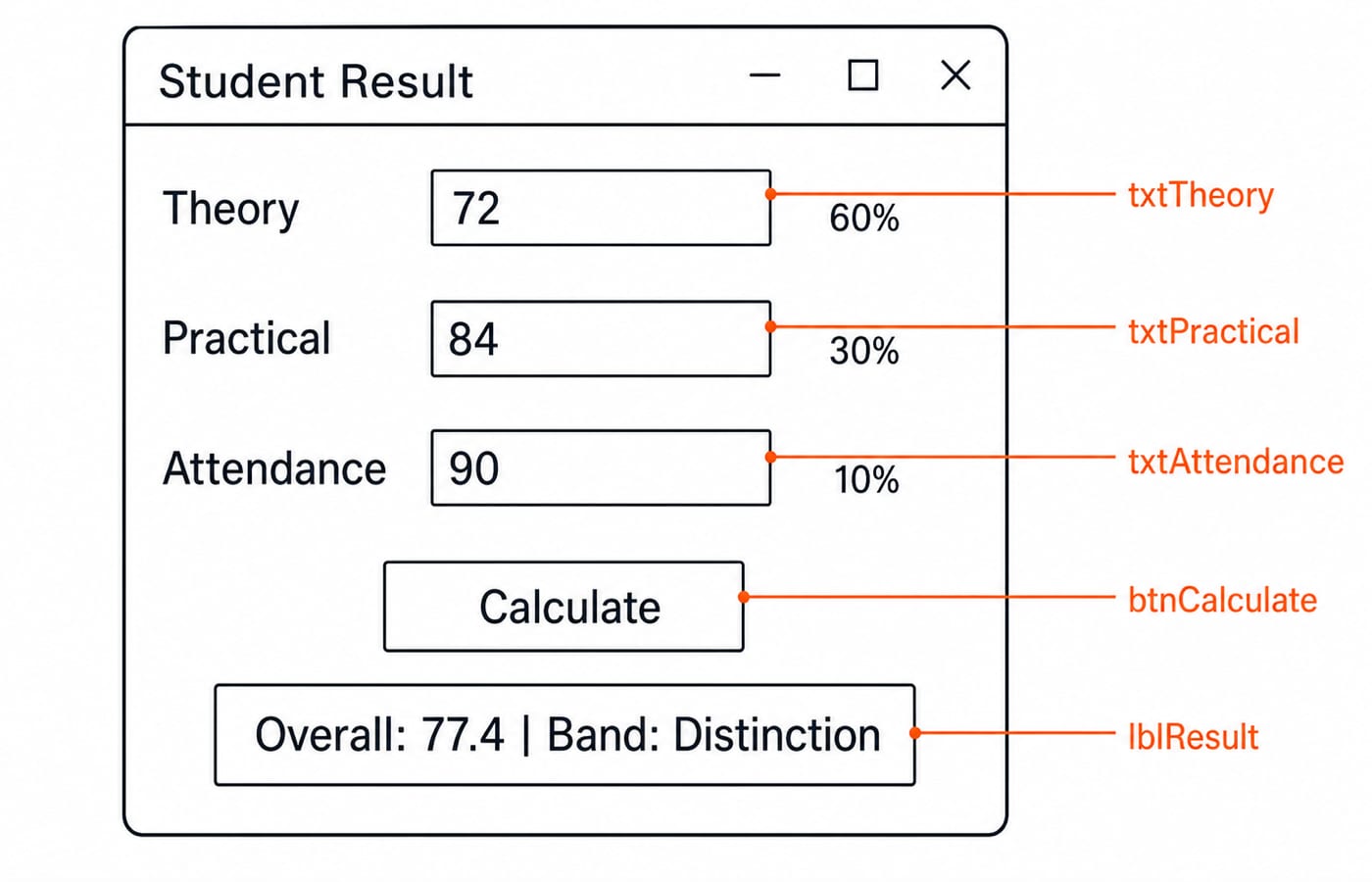
The learner enters 72, 84, and 90, then clicks btnCalculate. That action raises the button’s Click event. The handler parses all three inputs, checks their ranges, calculates the weighted result, and sets lblResult.Text to Overall: 77.4 | Band: Distinction.
The handler begins with this signature:
Private Sub btnCalculate_Click(sender As Object, e As EventArgs) Handles btnCalculate.ClickHandles btnCalculate.Click connects the procedure to that event. The control’s code-facing Name, btnCalculate, is separate from its visible Text, which can simply be Calculate.
Worked Example: Build a Student Result Form
Create a form with three labelled text boxes named txtTheory, txtPractical, and txtAttendance. Add a button named btnCalculate with visible text Calculate, plus an output label named lblResult. The example weights theory at 60%, practical at 30%, and attendance at 10%. Those weights, like the 75 and 60 thresholds used earlier, are constants chosen for this program and not any institution’s grading policy.
Use this complete handler:
Private Sub btnCalculate_Click(sender As Object, e As EventArgs) Handles btnCalculate.Click
    Dim theory, practical, attendance As Decimal

    If Not Decimal.TryParse(txtTheory.Text, theory) OrElse
       Not Decimal.TryParse(txtPractical.Text, practical) OrElse
       Not Decimal.TryParse(txtAttendance.Text, attendance) Then
        lblResult.Text = "Enter numeric values from 0 to 100."
        Return
    End If

    If theory < 0D OrElse theory > 100D OrElse
       practical < 0D OrElse practical > 100D OrElse
       attendance < 0D OrElse attendance > 100D Then
        lblResult.Text = "Enter numeric values from 0 to 100."
        Return
    End If

    Dim overall As Decimal = theory * 0.6D + practical * 0.3D + attendance * 0.1D
    Dim band As String

    If overall >= 75D Then
        band = "Distinction"
    ElseIf overall >= 60D Then
        band = "First division"
    Else
        band = "Needs improvement"
    End If

    lblResult.Text = "Overall: " & overall.ToString("F1") & " | Band: " & band
End Sub
For the valid run, all three TryParse calls succeed and all range checks pass. The weighted contributions are:
Theory:
72 × 0.6 = 43.2.Practical:
84 × 0.3 = 25.2.Attendance:
90 × 0.1 = 9.0.Total:
43.2 + 25.2 + 9.0 = 77.4.
Because 77.4 >= 75, the first branch selects Distinction. ToString("F1") displays one decimal place, producing the label text shown on the form. If theory is changed to 105, parsing still succeeds, but the range check fails. The handler displays Enter numeric values from 0 to 100. and returns without calculating.
Common Visual Basic Mistakes and How to Debug Them
Mistake | Failure | Repair |
|---|---|---|
| Invalid text causes a runtime conversion error | Use |
Missing | Clicking the button appears to do nothing | Connect the handler to the event |
Confusing a control’s | Code targets the wrong identifier | Use stable code names and reader-facing captions |
Expression details also matter. / performs division, while \ performs integer division, so 17 / 5 = 3.4 but 17 \ 5 = 3. AndAlso and OrElse short-circuit evaluation, allowing a validation chain to stop as soon as its result is known. Use & for text concatenation instead of depending on + and implicit conversion.
For debugging, reproduce the issue with 72, 84, and 90. Set a breakpoint on the handler, inspect the parsed decimal values, step through the range condition, inspect overall, and confirm that lblResult.Text changes.
How Exams and Interviews Can Test These Ideas
Computer-science recruitment and teaching papers usually reach programming through code tracing, type conversion, scope, conditions, loops, procedures, and language-neutral pseudocode rather than through Visual Basic syntax by name. Where a syllabus does name particular languages, that naming lives in the current syllabus or notification on the organising body’s official site, so read it there before spending revision time on syntax detail.
Three self-checks cover most of it: compare 17 \ 5 with 17 / 5, explain why a handler without Handles btnCalculate.Click is never invoked, and trace 72, 84, and 90 to 77.4 and the Distinction branch.
Behind every Dim and If you type, a compiler is first splitting the text into tokens and then checking those tokens against the language grammar. Lexical Analysis in Compiler Design: Tokens to DFA Scanner covers the first stage, and Parsing in Compiler Design: Top-Down and Bottom-Up Explained covers the second.
Short Version and Next Step
Values have types, statements control flow, procedures organise logic, controls expose properties, events invoke handlers, and validation protects the result. Keep the completed 72, 84, 90 -> 77.4 form as your revision anchor.
To keep practising the same trace-it-by-hand habit in another language, work through DSA using Java. Take the C Language course instead if you would rather rebuild the fundamentals first, or browse the Coding & DSA category for other options.
Keep learning
ISRO Scientist/Engineer CS Syllabus vs GATE CS: The Subject Overlap Map
See which core CS subjects transfer directly from GATE to ISRO, what drops out, how the question texture changes and where an ISRO-specific polish helps.
Updated 5 Oct 20264 min readGATE Strategy & Roadmap
Union-Find for GATE: Union by Rank, Path Compression and the Near-Constant Bound
Trace seven unions, inspect the final ranks, then compress the deepest path by hand. The worked forest makes the inverse-Ackermann bound much less mysterious.
Updated 1 Oct 20265 min readGATE Strategy & Roadmap
RAID Levels for GATE: Striping, Mirroring, Parity and the Two Capacity Formulas
Stop memorising RAID names in isolation. Tie each level to usable capacity, failure tolerance and write cost, then test the formulas on one eight-disk array.
Updated 26 Sep 20265 min read58 viewsGATE Strategy & Roadmap
Memory Interfacing for GATE: Chip-Count and Address-Decoding Numericals, Fully Worked
Separate words from bits, split the address correctly, and verify the result with a gap-free hexadecimal map. This guide works through depth and width expansion step by step.
Updated 24 Sep 20265 min read55 viewsGATE Strategy & Roadmap